How to install GreenTunnel VPN on Windows, step by step
From downloading the MSI to turning protection on: the SmartScreen warning, every setup page, checking a website and starting with Windows, with screenshots.
This guide walks through every screen you'll see when you install GreenTunnel VPN on Windows, from the download to protection being on and a website checked. For the full table of files for Windows and Linux, see Install GreenTunnel VPN on Windows and Linux.
Before you start
- Pick the right file. Most PCs use an Intel or AMD processor and need
GreenTunnelVPN-0.1.1-x64.msi. Laptops with a Snapdragon processor need the ARM64 file. Not sure? Open Settings → System → About and look at System type. - Turn off any other VPN. Two VPNs that both route all traffic get in each other's way.
- Only download from greentunnelvpn.com. Every file has a SHA-256 fingerprint in SHA256SUMS. Open PowerShell in your Downloads folder, run
Get-FileHash .\GreenTunnelVPN-0.1.1-x64.msiand check that it matches exactly.
Step 1: Download the file and keep it
Click the download button on the download page. Your browser may say the file “isn't commonly downloaded”. That only means few people have downloaded this exact file so far. In Microsoft Edge, open the downloads panel, click ··· next to the file, choose Keep, then Show more → Keep anyway. In Google Chrome, click Keep in the download bubble.
Step 2: Get past SmartScreen
Double-click the MSI in your Downloads folder. Windows may show a window titled Windows protected your PC.
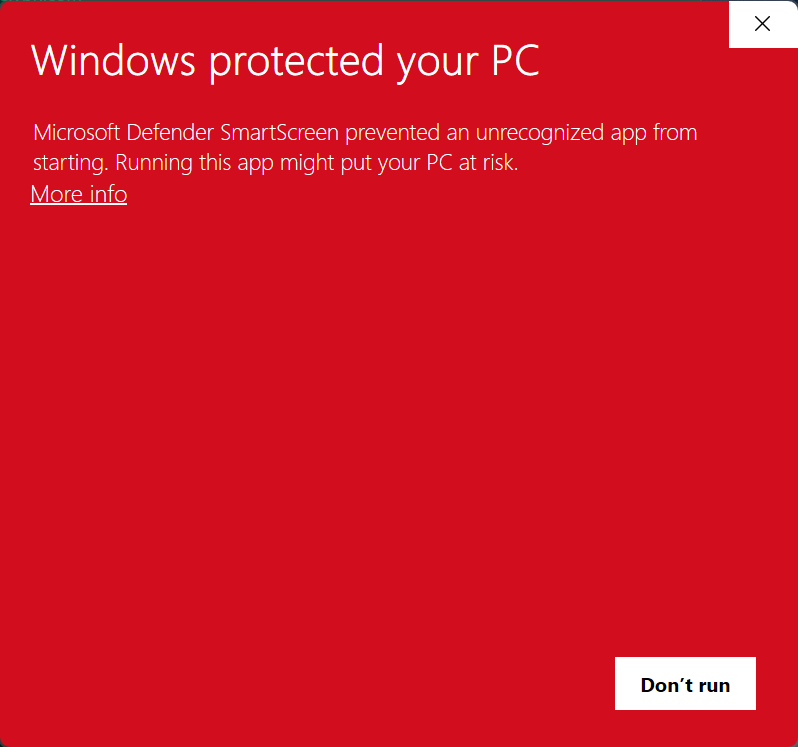
Click More info, check that the app name is the file you just downloaded, then click Run anyway.
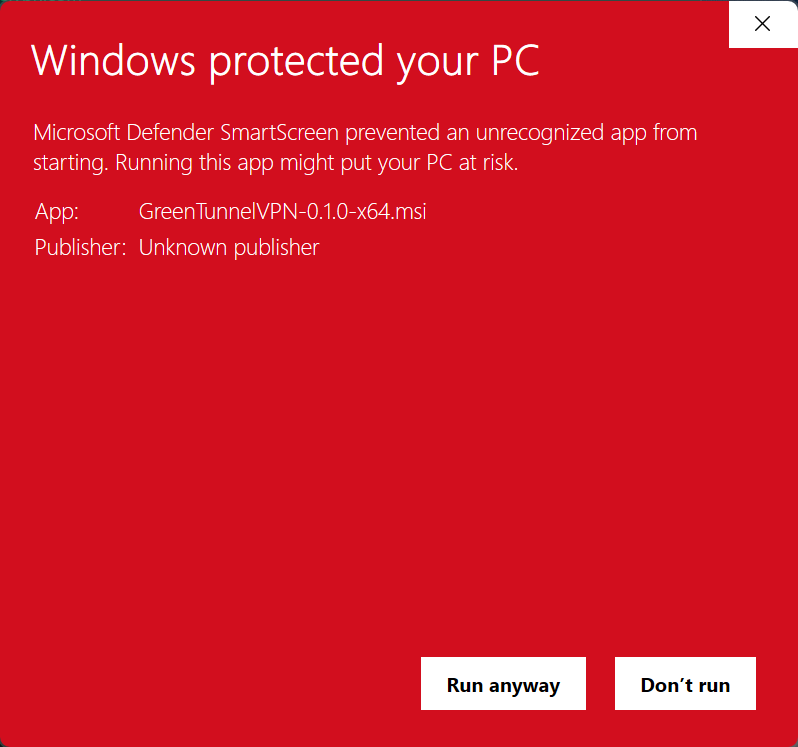
The warning doesn't mean Windows found a virus. SmartScreen rates files by how many people already run them, and this is GreenTunnel's first Windows release. The installer isn't signed with a code-signing certificate yet either, so the publisher shows as “Unknown”. We're getting a certificate. Once the installer is signed with the CellHubs name and more people install it, the warning becomes rarer and then goes away.
Step 3: Go through setup
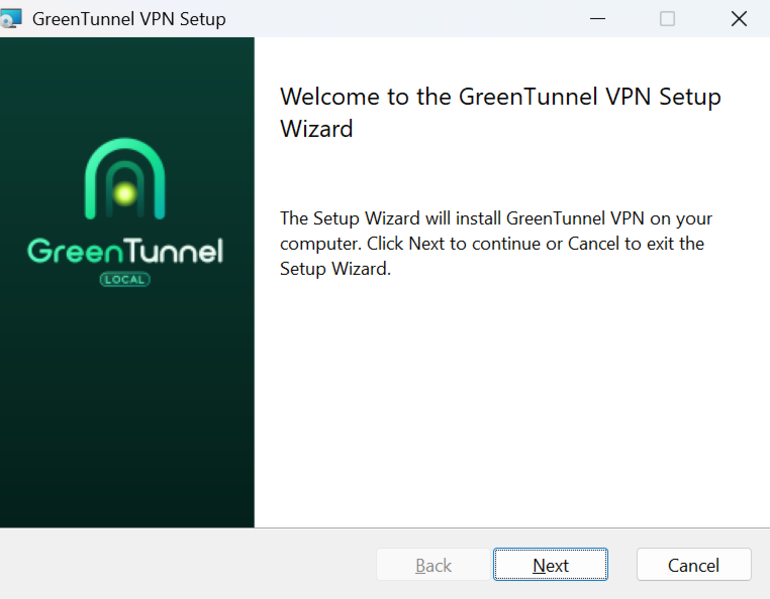
Setup has five pages. The first one just says hello: click Next.
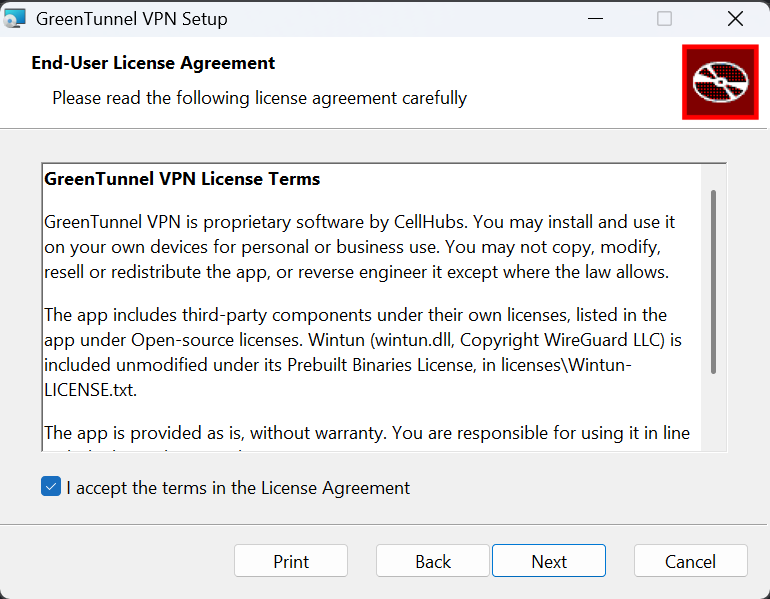
Read the terms, tick I accept the terms in the License Agreement and click Next.
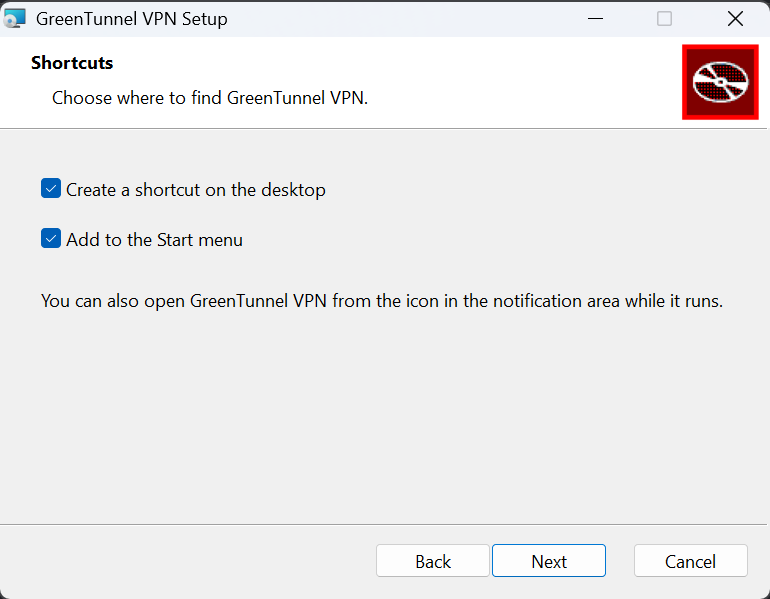
Choose where to put shortcuts: the desktop and the Start menu (both are ticked). Click Next.
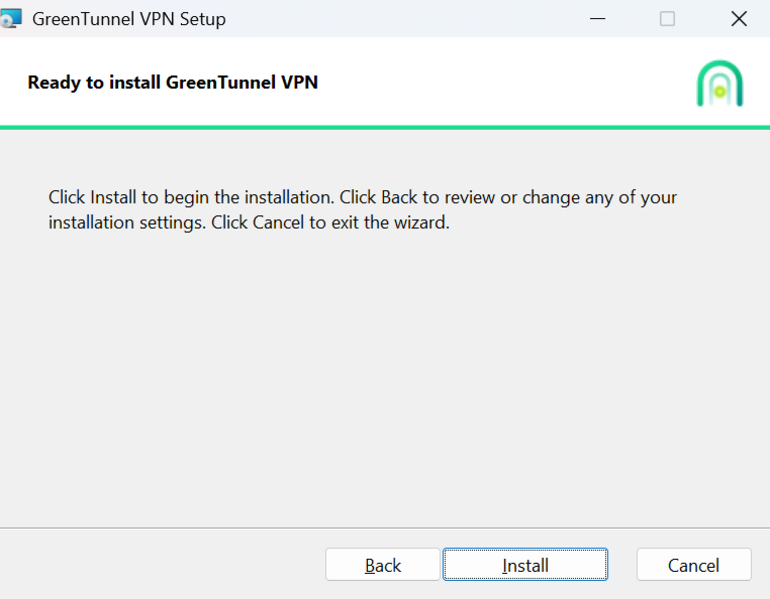
Click Install. Windows asks whether to allow the app to make changes to your device: click Yes. GreenTunnel needs administrator rights only this once, to install its background service and network adapter.
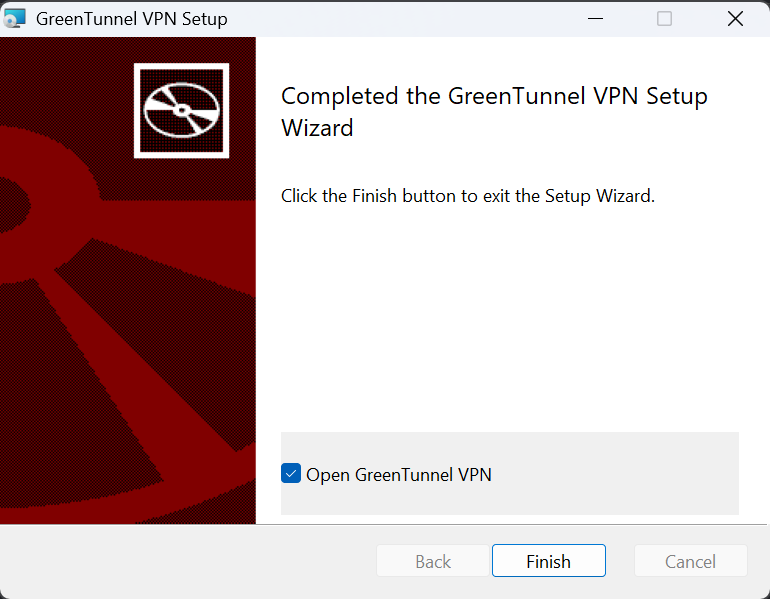
When setup is done, leave Open GreenTunnel VPN ticked and click Finish. The app opens.
Setup adds three things: the app; a service named GreenTunnel VPN Service that runs the engine, so the app itself never needs administrator rights; and a network adapter named GreenTunnel (Wintun) that is only active while protection is on.
Step 4: Turn protection on
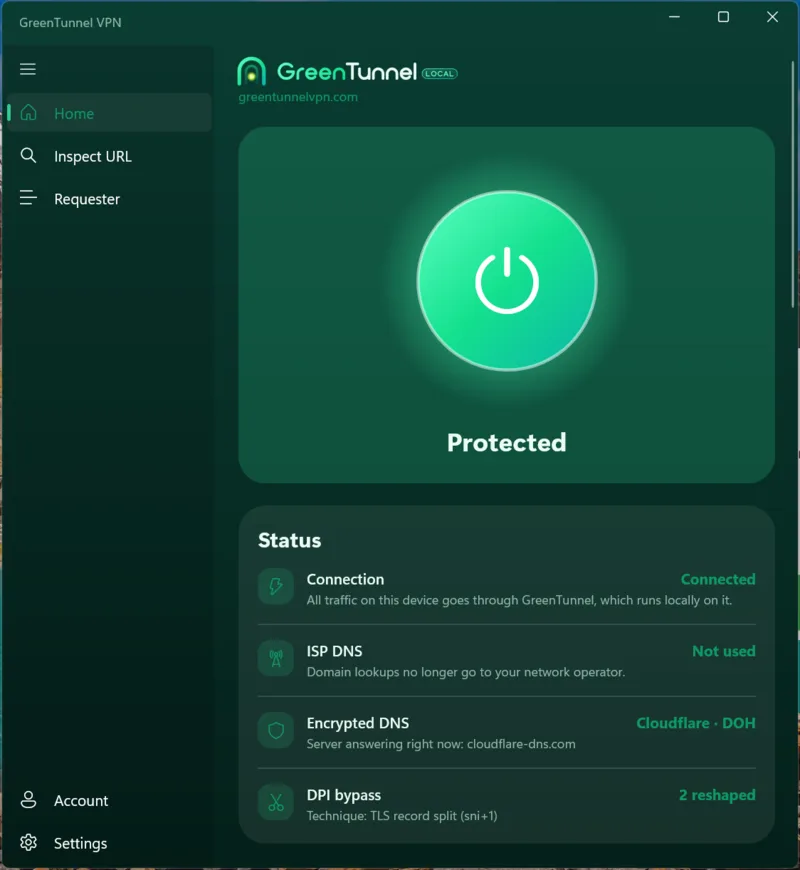
The first time, the app shows Protection is off. Click the big power button.
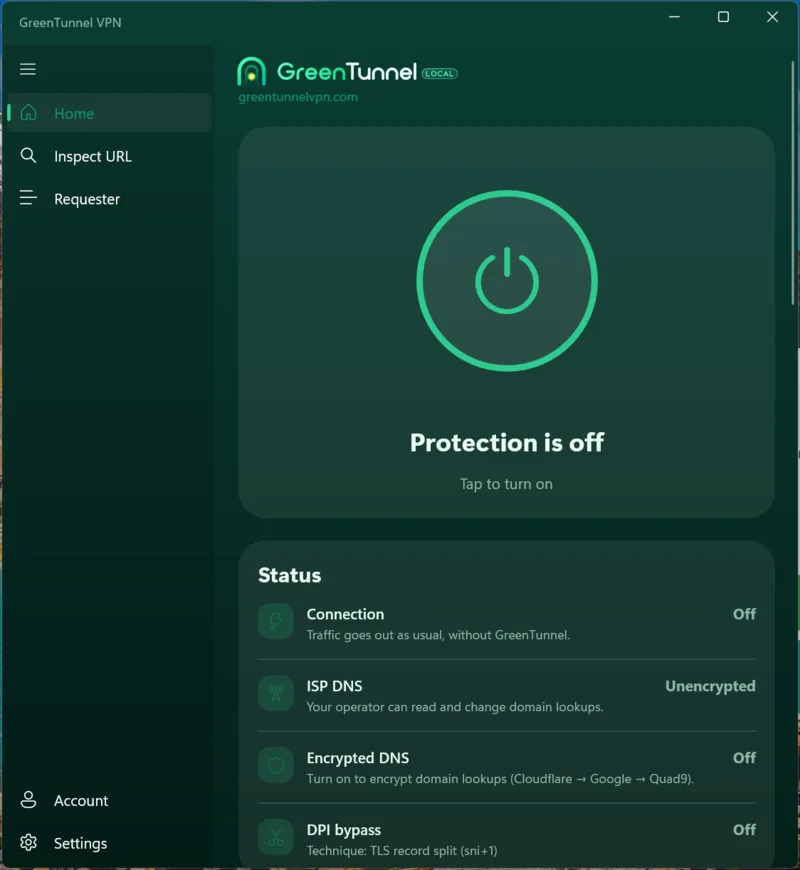
A few seconds later the button turns green and says Protected. The Status card shows what is happening, from real measurements:
- Connection: every app on the PC goes through GreenTunnel, which runs locally on it.
- ISP DNS: not used any more, so your operator can't read or change your domain lookups.
- Encrypted DNS: the server answering right now, for example Cloudflare over DoH.
- DPI bypass: how many connections were reshaped to get past filters.
Step 5: Check a website
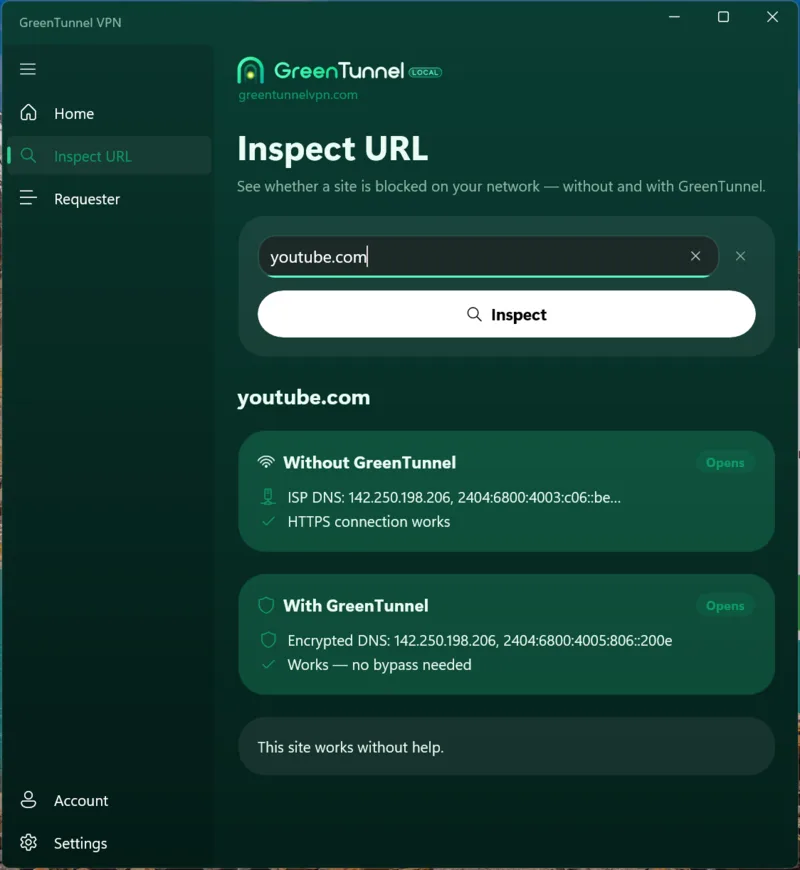
Open Inspect URL, type a site (for example one you can't usually open) and click Inspect. GreenTunnel tries the site twice, without and with GreenTunnel, and tells you how it is blocked and whether GreenTunnel helps.
More on this: how to tell whether a site is blocked.
See which apps connect
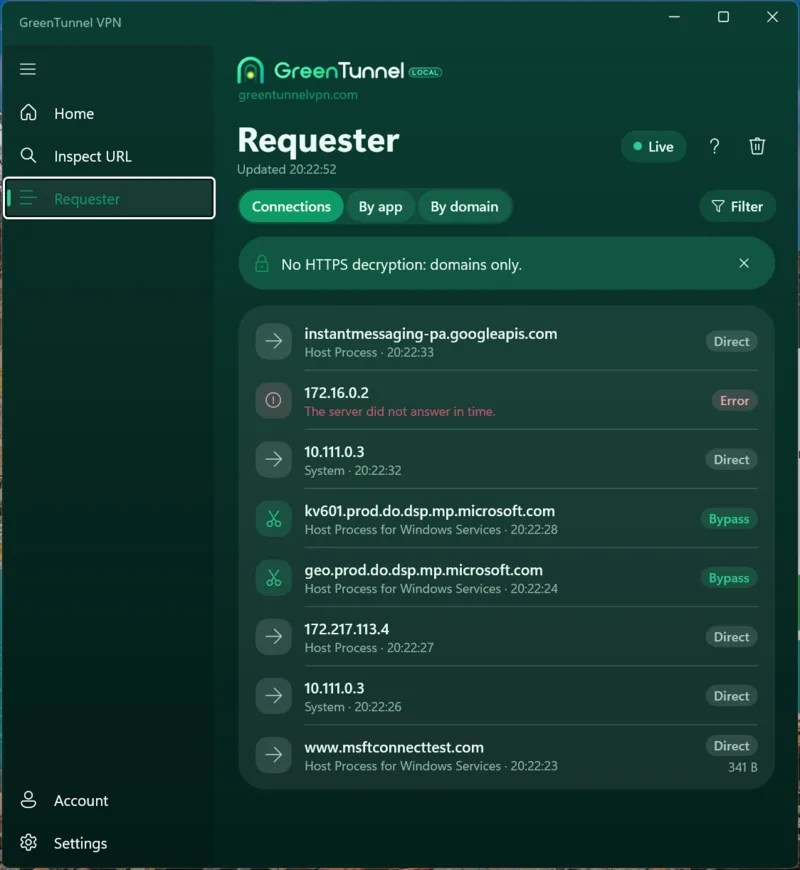
Requester lists recent connections live: the domain, the app that opened it, and what GreenTunnel did with it (Bypass means reshaped to get past filters, Direct means sent as is). GreenTunnel doesn't decrypt HTTPS, so it sees domains only, never content. The list stays on your PC.
More on this: what Requester shows you.
Start GreenTunnel with Windows
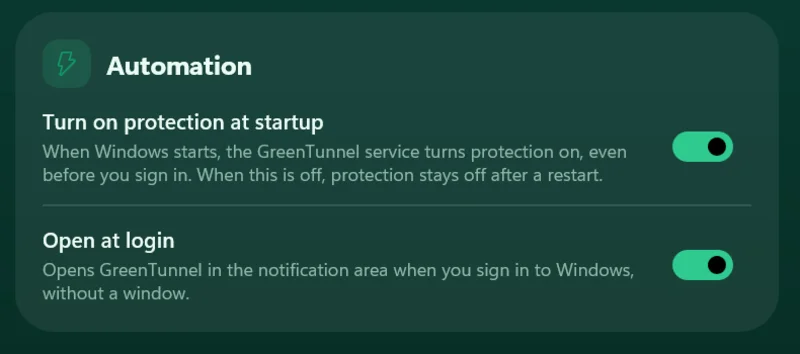
In Settings, the Automation section has two switches. Both stay off until you turn them on:
- Turn on protection at startup: the service turns protection on as soon as Windows starts, even before you sign in.
- Open at login: GreenTunnel only shows its icon in the notification area next to the clock, without a window. Click the icon to switch protection or open the app.
Windows 11 often tucks new icons into the hidden group (the ^ arrow next to the clock). To keep the icon in view, drag it onto the taskbar.
An account is optional
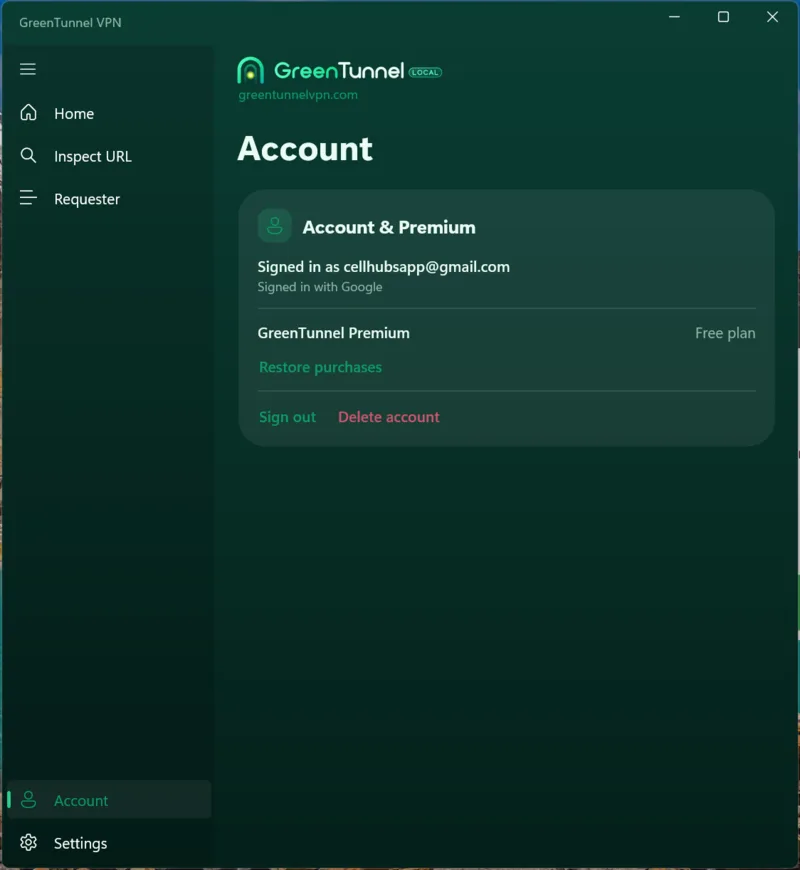
Every free feature works without signing in. Account only keeps Premium on all your devices. Signing in opens greentunnelvpn.com in your browser (Google, Apple or email) and then hands you back to the app. We store only your email and sign-in ID, nothing about your browsing.
Updating and uninstalling
- Update: the app checks for a new version when it opens and every 12 hours, and asks you before installing. You can also download the new MSI and run it over the old one; your settings are kept.
- Uninstall: Windows Settings → Apps → Installed apps → GreenTunnel VPN → Uninstall. The service and the network adapter are removed with it.
If something gets in the way
- There's no Run anyway button: on Windows 11, Smart App Control blocks unsigned apps with no way past. Please wait for the signed version, or install on another PC. Turning Smart App Control off usually can't be undone without reinstalling Windows, so we don't suggest it.
- Your antivirus removed the file: check the SHA-256 fingerprint as above, then restore the file or add an exception. Tell us which antivirus it was at cellhubsapp@gmail.com.
- Websites don't load after turning it on: turn off any other VPN, then turn GreenTunnel off and on again. If one site is still blocked, see what to do when a site is still blocked.
FAQ
Do I need an account to use GreenTunnel on Windows?
No. Protection, encrypted DNS, the bypass, Inspect URL and Requester all work without signing in. An account only keeps Premium across devices.
Does GreenTunnel hide my IP address?
No. GreenTunnel is a local VPN: it runs on your PC, encrypts DNS and reshapes packets to get past filters, then connects straight to the site. Websites still see your IP address.
Why does Windows warn me when I run the installer?
SmartScreen warns about any new file that few people have downloaded, and the installer isn't signed with a code-signing certificate yet. Only download from greentunnelvpn.com and compare the SHA-256 fingerprint with SHA256SUMS before clicking Run anyway.