Is a site blocked on your network? Find out with Inspect URL
Inspect URL compares your ISP's DNS with encrypted DNS and tests HTTPS with and without bypass. How to read fake DNS, SNI filtering and IP blocks.
"This site won't open" can mean a lot of things: the site is down for maintenance, your connection is flaky, or it really is blocked. Even when it's blocked, each kind of block needs a different fix. Instead of guessing, GreenTunnel has a built-in diagnostic tool, Inspect URL: type an address, wait a moment, and read the result in plain language.
How to use it
- Open the Inspect URL tab.
- Type the site, for example
example.com. You can paste a full link, and the app keeps only the domain. - Tap Inspect. It can take up to a minute, because the engine tries several ways to connect.
Results are measured for real, on the network you're on, right then. The checks don't go through GreenTunnel's own tunnel, so the "Without GreenTunnel" part reflects what your ISP actually does. On Android, the app excludes itself from its own VPN to make that possible.
What GreenTunnel checks
Two things decide whether a site opens: whether your network answers its name honestly (DNS), and whether a filter reads the site name in the first HTTPS packet (DPI). The check runs in four steps:

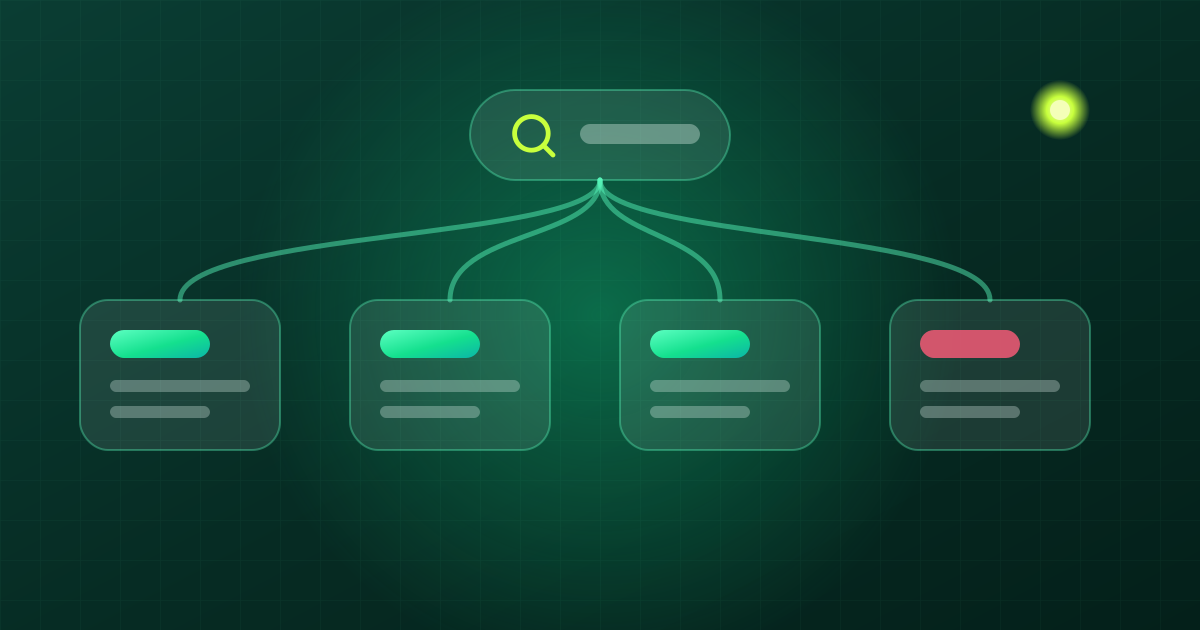
- Compare DNS. The engine looks up the same name through your ISP's DNS and through encrypted DNS. If the ISP gives no answer, or a completely different address that doesn't actually serve the site, the answer is flagged as likely fake. A different address alone isn't enough, since big sites run many servers.
- Reach the real IP. The engine opens a TCP connection to the address from encrypted DNS, port 443. If that fails, the site is most likely blocked by IP.
- HTTPS without bypass. A full TLS handshake, with the certificate checked, then a small request. If a response comes back, the site isn't being filtered by name.
- HTTPS with bypass. If step 3 fails, the engine tries splitting techniques one by one, starting with the one you use now and then from light to heavy, and stops at the first that works.
Reading the result
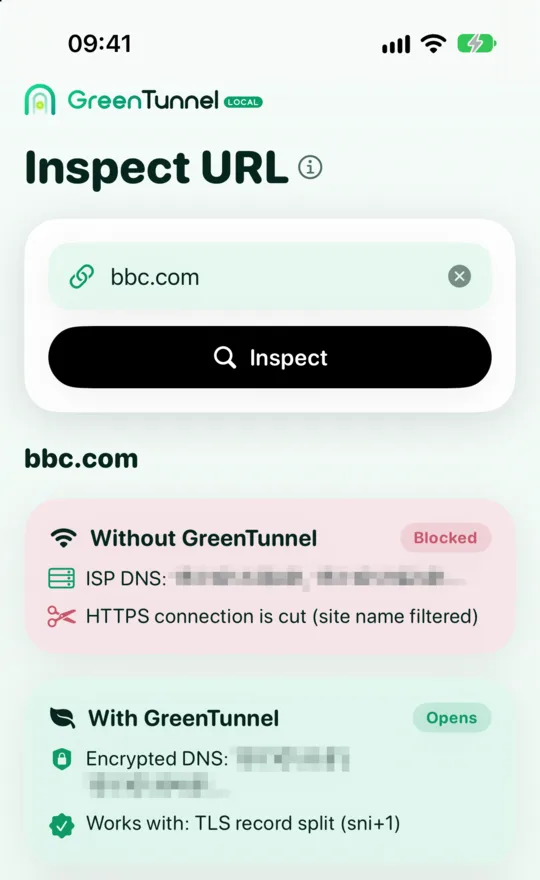
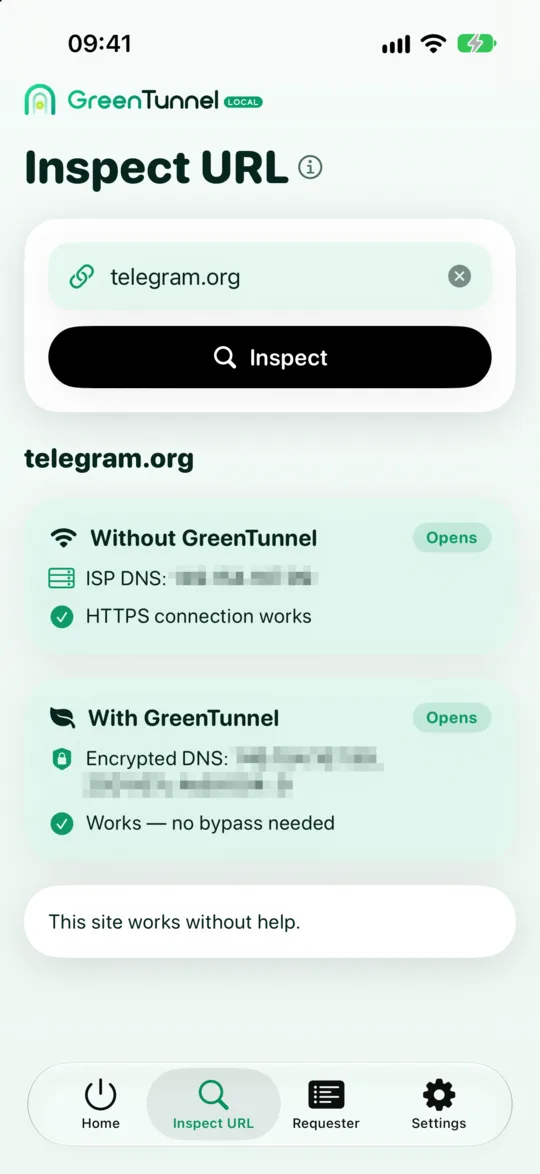
Each card has an overall tag, Opens or Blocked, with detail lines underneath:
| Line shown | What it means |
|---|---|
| ISP DNS: addresses | What your ISP returned for the name (up to two addresses) |
| This answer looks fake or blocked | The ISP didn't answer, or returned an address that doesn't serve the site |
| Encrypted DNS: addresses | The real addresses, from encrypted DNS |
| HTTPS connection is cut (site name filtered) | The server is reachable but the HTTPS handshake is blocked: a sign of SNI filtering |
| The server's address is unreachable | No connection to the IP at all: a sign of an IP block |
| Works with: technique | The first bypass technique that worked |
| No technique works here yet | No local technique got through |
The summary card
At the bottom is a one-line verdict, one of these:
- This site works without help: not blocked. If it still won't open for you, the problem may be the site itself or your device.
- Your network fakes DNS answers for this site: encrypted DNS alone fixes it, and GreenTunnel turns it on whenever the VPN runs.
- Your network reads the site name and blocks it: an SNI filter. The app names the technique it found.
- This site is blocked by IP address: local techniques can't get past this kind of block.
- Couldn't determine the cause: try again on another network, for example mobile data instead of Wi-Fi.
What to do next
When a technique is found
If the technique found differs from the one you use, the app shows Use this technique. Tap it and the technique is saved and applied to the running engine right away. You can review or reset it under Settings → Technique. If you use "Listed sites only" mode, remember to add the site to "Sites to unblock".
When DNS is faked
Just turn GreenTunnel on. Every DNS lookup on the device then goes to the encrypted server you chose in Settings.
When the site is blocked by IP
Now traffic has to go through another server. You can use Proxy Route or Tunnel Link with a server you choose and trust, and split routing rules so only that site goes through it. See local VPN vs remote VPN for the difference.
Once you're done, open the site and check Requester to see how the real connection was handled: Bypass, Direct or Error.
FAQ
Does Inspect URL send the sites I check to GreenTunnel's servers?
No. Every check runs on your device and connects straight to the site and to the DNS server you chose. We don't collect the domains you inspect.
Why does it take so long?
When a site is filtered, the engine has to try techniques one at a time, each time waiting for the server to answer or time out. The harder the site is to reach, the more attempts it takes.
Is it normal to get different results on Wi-Fi and mobile data?
Completely normal. Each network may block in its own way, so inspect again whenever you switch networks.
Does "fake DNS" always mean deliberate blocking?
Not necessarily. ISP DNS sometimes has temporary glitches. But if the address for the same site is wrong every time, it's very likely a deliberate block.