Requester: see which apps connect where
Requester lists every connection on your device: app, domain, and whether it was Bypass, Direct, Blocked, Error or Proxy. Domains only, kept on-device.
Ever wondered who your phone is talking to while it sits in your pocket? Where does that flashlight app send data? Why is one website so slow to load? With GreenTunnel on, every connection passes through the engine on your device, so GreenTunnel can show them to you in the Requester tab.
What Requester shows
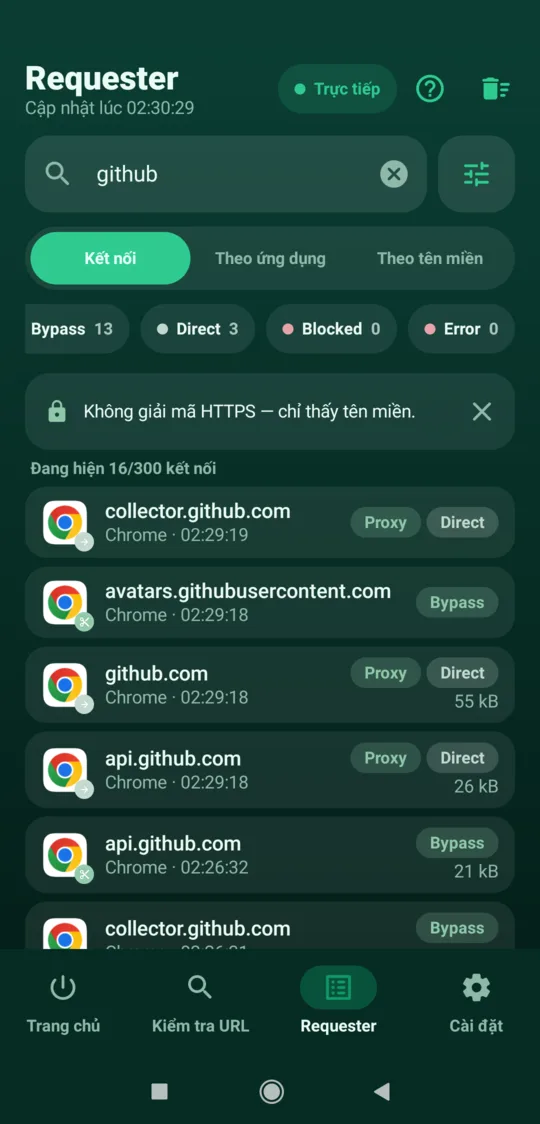
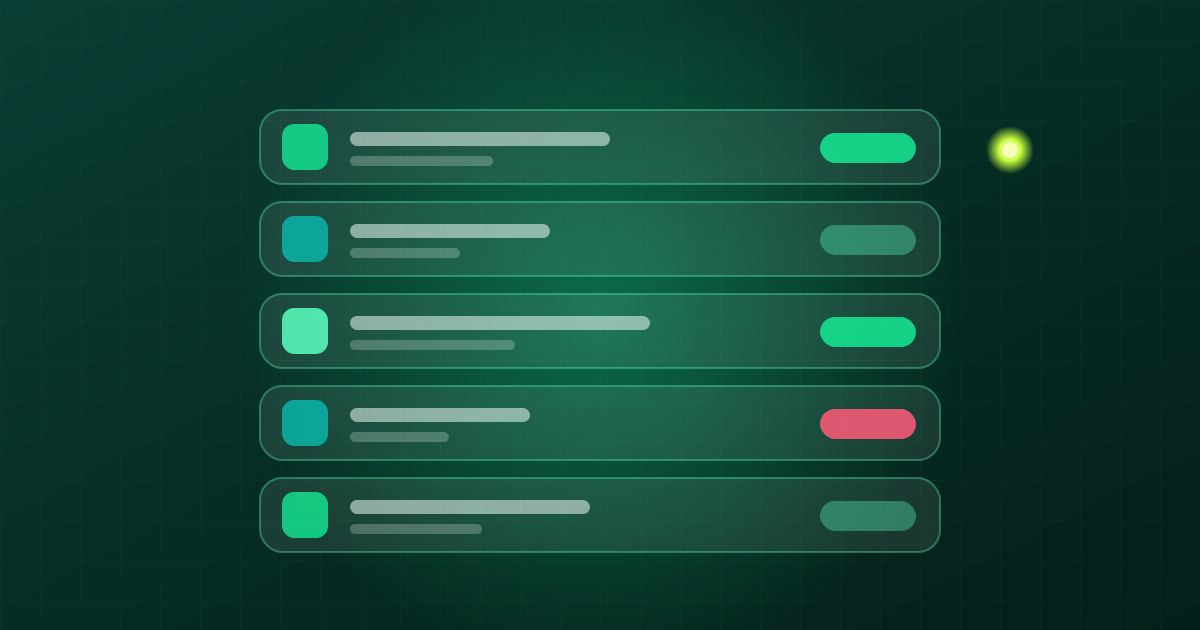
Each row is one connection. On the left is the app's real icon with a small badge for its status. The title is the domain (or the IP address when no name is known), and the subtitle is the app name and start time. On the right are the status tag and total data.
The domain comes from the SNI in the first HTTPS packet, from the HTTP Host line, or from an earlier DNS answer, so even connections without SNI usually get a readable name.
Android vs iOS
- Android tells VPN apps which app owns each connection, so Requester shows the app's icon and name. System services that share one user ID appear as "System service".
- iOS doesn't tell VPN apps which app opened a connection. On iPhone the list is therefore grouped by domain, and the app shows a note explaining why.
What the tags mean
Status tags keep their English names in every language so they're easy to recognise and look up. Each connection falls into exactly one of the four statuses Bypass, Direct, Blocked and Error, so the chip counts always add up to "All". Connections that go through a server you chose also carry a Proxy tag.
| Tag | Meaning |
|---|---|
| Bypass | GreenTunnel split the first packet so your ISP couldn't read the site name (see splitting). |
| Direct | Sent as is. This connection didn't need any change. |
| Blocked | Stopped by your block list. Nothing was sent. |
| Error | The connection didn't complete. The reason is given in plain words: the server didn't answer in time, refused the connection, cut it off midway, the network couldn't reach it, or the name couldn't be resolved. |
| Proxy | Extra tag: the connection went through a server you chose with Proxy Route or Tunnel Link. |
Tap "What do the labels mean?" at the top of the screen to see these explanations inside the app.
Search and filter
- Search matches the domain, app name or IP address (case-insensitive), or a port number exactly.
- Status chips with live counts: All, Bypass, Direct, Blocked, Error.
- Filters: sort by newest, most data or name A–Z, and filter by protocol (TCP/UDP) and by app.
- Three views: Connections (a timeline), By app, and By domain. In the grouped views each group shows per-status counts, its top three domains (or apps) and total data. Tap a group to see just its connections.
- Live / Paused: the list refreshes about every 2 seconds while the VPN is on. Pause it to read without the list moving, or pull down to refresh right away.
For example, to see where a game connects, switch to By app, tap the game, then pick the Error chip to see which connections fail.
Make a rule straight from a connection
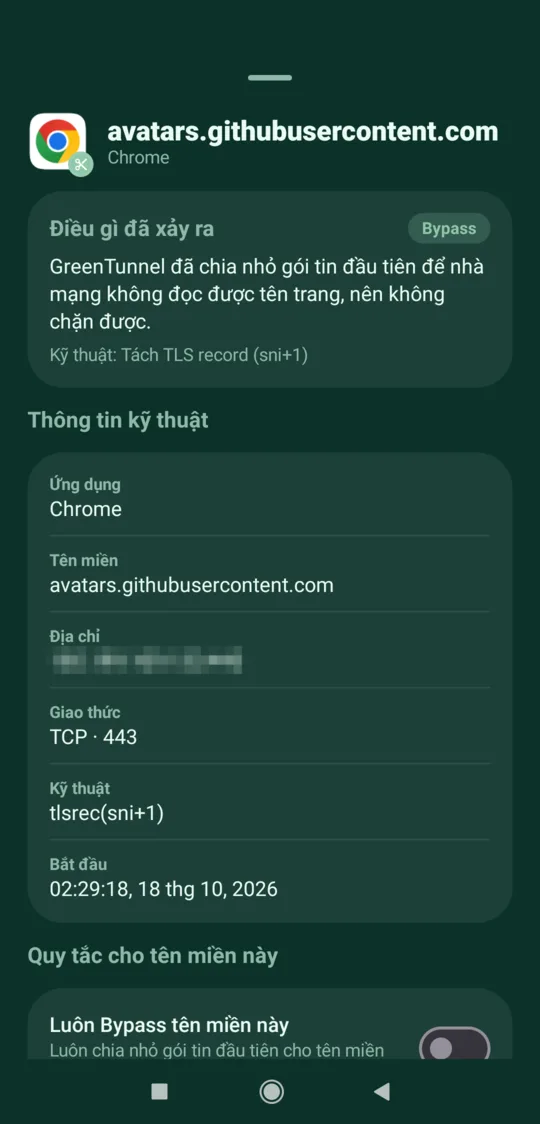
Each connection's detail sheet has a What happened card (the tag, an explanation, the technique used or the error reason) and Technical details: app, domain, address and port, protocol, technique, what blocked it, data sent and received, and start time. Below that are Rules for this domain:
- Always bypass this domain: always split the first packet for it. Handy in "Listed sites only" mode.
- Always allow: never block it and send it as is (Direct), even if it's on your block list. Good for banking apps or sites blocked by mistake.
The two switches exclude each other: turning one on turns the other off. Changes apply to the running engine right away. You also get Show only this app, Show only this domain and Copy for the domain. For per-app or per-route rules, see split routing rules.
Requester and your privacy

- No HTTPS decryption. Requester sees domains and data sizes, never page content, messages or full paths.
- Stays on the device. Records live in a fixed-size ring buffer on your device, where new records replace old ones. Clear hides the current records from the list.
- Never sent anywhere. We never collect your browsing content, domains or traffic. Requester is for you to look at, not us.
When the VPN is off, the last list stays on screen with a note, but no new connections are recorded.
See also how a local VPN differs from a remote one.
FAQ
Can Requester read my messages or passwords?
No. GreenTunnel doesn't decrypt HTTPS. Requester only sees each connection's domain, address, protocol and data size.
Why do some connections have no domain?
When a connection carries no SNI or Host and the engine hasn't seen a DNS answer for that address, Requester can only show the IP.
Why don't I see app names on iPhone?
iOS doesn't give VPN apps that information, so on iOS Requester groups connections by domain instead.
Should I block every unfamiliar domain I see?
Be careful. Many unfamiliar domains are content servers or system services that apps need. If a block breaks an app, open the connection in Requester and turn on "Always allow".