Public Wi-Fi safety at cafés, airports and hotels
What others on public Wi-Fi can see with HTTPS, DNS spoofing, captive portals, what a local VPN does and doesn't protect, and a checklist.
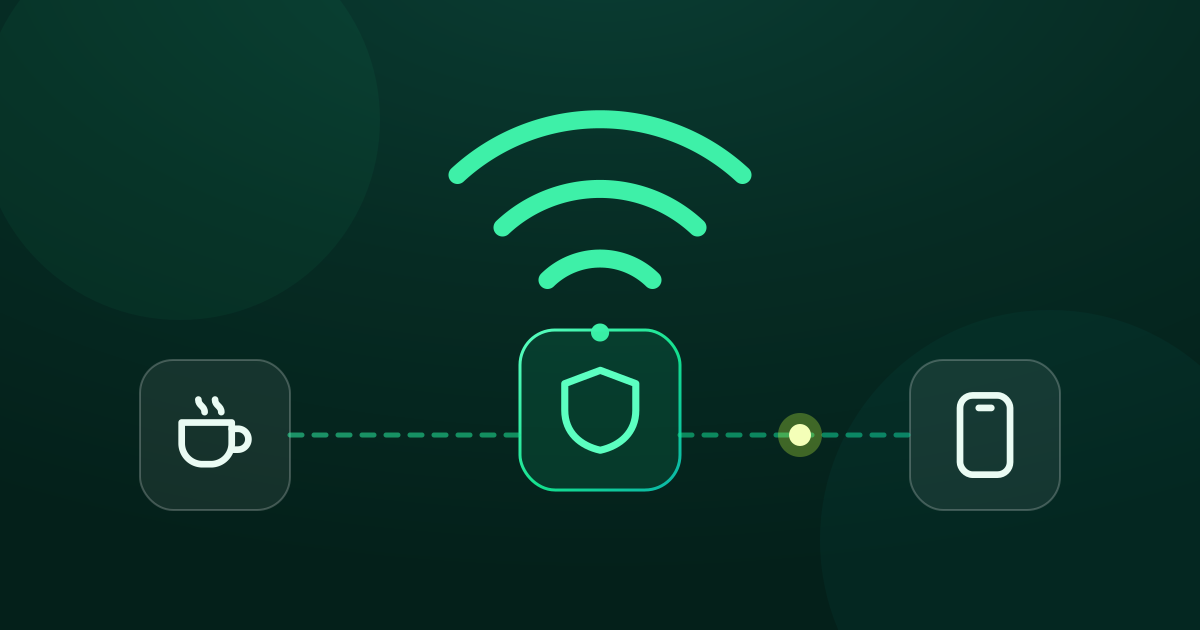
Café Wi-Fi, the airport network, the hotel's “Guest” SSID. They're convenient, and you have no idea who runs them or who else is connected. The good news: the web today is mostly HTTPS, so public Wi-Fi is far less dangerous than it was ten years ago. The less good news: “far less” isn't “not at all”. This guide explains what's actually exposed, what encrypted DNS fixes, why sign-in pages fight with VPNs, and where a local VPN like GreenTunnel stops helping.
What others on the network can see
“Others” means the owner of the hotspot, anyone who has taken over its router, or a fake hotspot set up with a familiar name. Here's what each of them can see in three setups:

With HTTPS, the network can't
- read the pages you open, the forms you fill in, your passwords, cookies or messages
- change a page without your browser showing a certificate error
Even with HTTPS, the network can
- see which sites you visit, from plain DNS lookups and from the site name (SNI) at the start of each HTTPS connection. Encrypted Client Hello hides the name on sites that support it.
- see the IP addresses you connect to, when, and how much data flows
- read and change everything on pages that still use plain
http://
DNS spoofing, and how encrypted DNS helps
When you join a Wi-Fi network, it tells your device which DNS server to use. That's usually the router itself. Plain DNS has no protection, so a hostile router can answer “your bank is at this address” with an address it controls. HTTPS will usually catch it with a certificate error. But a fake answer can still lead to a look-alike page, a page full of ads, or a link that never loads, and every lookup you make is readable along the way.
Encrypted DNS fixes both problems. GreenTunnel sends every app's lookups over DoH or DoT straight to the provider you picked in Settings: Cloudflare, Google or Quad9. It connects to them by built-in IP addresses, so the Wi-Fi network's own DNS is never asked. The network can no longer read your lookups or rewrite the answers. GreenTunnel's scam blocklists also stop many known phishing sites before they load. See avoiding scam and phishing sites.
Captive portals: when the sign-in page won't appear
Many hotels, airports and cafés show a sign-in or “accept terms” page before letting you online. These captive portals usually work by catching your first web request or DNS lookup and redirecting it to their page. That clashes with any VPN, because GreenTunnel encrypts DNS and handles connections before the network can redirect them.
The reliable way through:
- Turn GreenTunnel off for a moment, with the app, the Quick Settings tile, or Pause 15 min in the Android notification.
- Wait for the sign-in page to pop up, or open any plain
http://address in the browser to trigger it. - Sign in or accept the terms. Don't do anything else while protection is off.
- Turn GreenTunnel back on.
If you've turned on Android's Block connections without VPN, the portal can't load at all while GreenTunnel is off. Switch that setting off briefly too. See keeping your VPN running on Android. On networks you use often, adding the portal's domain to Always direct in Settings sends it without any packet reshaping, which can help when the portal page opens but misbehaves.
What a local VPN does not protect
GreenTunnel runs entirely on your device, with no relay server. That's great for speed and privacy, but it sets clear limits on public Wi-Fi:
- It doesn't hide your IP. Connections go straight from the hotspot to the website. The network sees which IP addresses you reach.
- It doesn't encrypt beyond HTTPS. DPI bypass reshapes the first packets of a connection, it doesn't encrypt them. The site name in SNI stays visible unless the site uses ECH.
- Plain HTTP stays plain. A page loaded over
http://is as readable with GreenTunnel as without it. - It doesn't guard the device itself. File sharing, open ports and outdated software are the operating system's job. Keep them locked down.
What GreenTunnel does add on public Wi-Fi: encrypted DNS for every app, ad and scam blocking, and a live view of which app connects where in Requester.
When to use your own WireGuard or Shadowsocks server
If you don't want the network to see where you go at all, send traffic through a server you control. The Wi-Fi then sees one encrypted connection to your server and nothing else.
- Tunnel Link (WireGuard) carries both TCP and UDP, QUIC included. Set one up with your own WireGuard server, then import it as described in Tunnel Link.
- Proxy Route with Shadowsocks is encrypted too, and with Send UDP too on it also carries UDP. See running your own Shadowsocks server.
- Avoid plain SOCKS5 and HTTP proxies on public Wi-Fi. They don't encrypt the path to the proxy, so the network can read the site names and even the proxy password. An HTTPS proxy is fine. Compare them in SOCKS5, HTTP, HTTPS or Shadowsocks.
Two guarantees keep this tight. When the active route is a proxy that can't carry UDP, GreenTunnel blocks all UDP except DNS. Apps then fall back to TCP, which goes through the proxy, so nothing slips past it on the café's network. And if your server stops answering, connections routed to it fail instead of quietly going direct. See no leaks when your proxy or tunnel fails.
Keep in mind that trust moves to whoever runs that server. With your own VPS, that's you. Sites you visit then see the server's address instead of the hotspot's.
A practical checklist
- Check the network name with staff. Be wary of open networks with generic names like “Free WiFi”.
- Sign in to the portal first, then turn GreenTunnel on for encrypted DNS and blocking.
- Stick to HTTPS, and leave any site that shows a certificate warning.
- Use your own tunnel for sensitive work, or switch to mobile data for banking and payments.
- Turn off sharing: file sharing, AirDrop set to “Everyone”, and on Windows mark the network as Public.
- Use two-factor sign-in on important accounts, so a stolen password alone isn't enough.
- Keep your system and browser updated.
- Forget the network when you leave, and turn off auto-join for open networks.
Learn more about GreenTunnel on the home page.
FAQ
Isn't HTTPS enough on public Wi-Fi?
For the content of what you do, mostly yes, as long as you never click through certificate warnings. HTTPS doesn't hide which sites you visit, though, and plain DNS can be faked. Encrypted DNS closes the DNS gap, and your own tunnel hides the rest.
Does GreenTunnel hide what I do from the café owner?
Partly. With GreenTunnel on, the network can't read or fake your DNS lookups. It still sees the IP addresses you connect to and, for most sites, their names. Only routing through your own server hides those.
Why doesn't the Wi-Fi sign-in page show up?
Sign-in pages rely on intercepting your traffic, which encrypted DNS and the VPN prevent. Turn GreenTunnel off briefly, sign in, then turn it back on.
Is mobile data safer than public Wi-Fi?
Usually, yes. Nobody else at the café shares your mobile connection, and you know who the operator is. Your mobile operator can still see the same kind of information a Wi-Fi owner can, so encrypted DNS is useful there too.