Keep your VPN running on Android: Always-on and battery
Turn on Always-on VPN and Block connections without VPN, stop battery savers on Xiaomi, Samsung, Oppo and Vivo, and use the tile and the 15-minute pause.
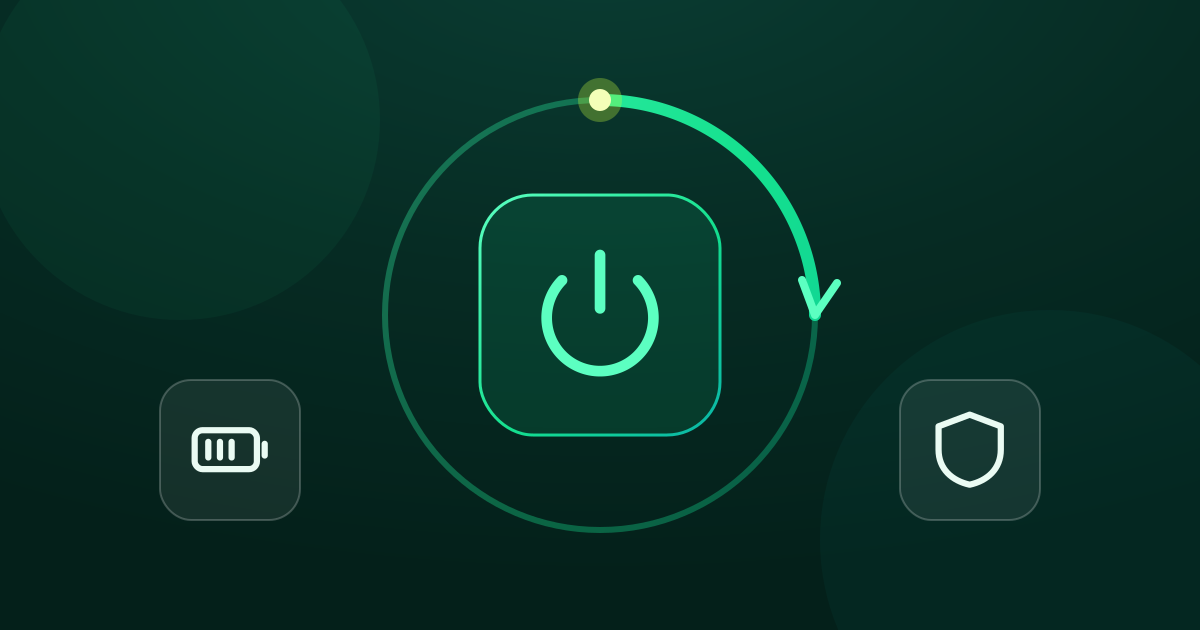
You turn GreenTunnel on in the morning, and by lunchtime the key icon is gone. Ads are back, encrypted DNS is off, and blocked sites are blocked again. Usually nothing crashed. Android, or the battery manager your phone maker added on top of it, decided to close the app to save power. Or the phone restarted overnight for an update and nobody turned the VPN back on.
This guide covers the settings that fix both, plus the two quick controls GreenTunnel adds to Android. The menu names below come from recent versions. Your phone may word them a little differently, and the search box at the top of Settings usually finds them.

Step 1: turn on Always-on VPN
Always-on VPN is a system setting. When it's on, Android starts GreenTunnel by itself after the phone boots, and keeps the VPN slot reserved for it. GreenTunnel deliberately doesn't add its own “start at boot” trick. The system feature is the reliable, approved way to do this.
- Turn GreenTunnel on once from the app, so Android has already granted it the VPN permission.
- Open the system VPN list:
- Pixel and most phones: Settings → Network & internet → VPN.
- Samsung: Settings → Connections → More connection settings → VPN.
- Xiaomi, Redmi, POCO: Settings → Connection & sharing → VPN.
- Tap the gear icon next to GreenTunnel VPN.
- Turn on Always-on VPN.
Android allows only one always-on VPN at a time, just as only one VPN can run at a time. To use your own WireGuard server as well, you don't need a second app. Use Tunnel Link inside GreenTunnel.
Block connections without VPN: what it means here
On the same screen there's a second switch, Block connections without VPN. With it on, Android lets no app reach the network unless the VPN is up. That's useful, but the effect with GreenTunnel is worth spelling out:
- No gap after a restart. Apps can't connect in the seconds before GreenTunnel starts, so their first lookups don't go to your ISP's plain DNS.
- Off really means offline. If you turn GreenTunnel off, or use Pause 15 min, the phone has no internet until protection is back. That's the system doing exactly what the switch says.
- It doesn't change what GreenTunnel is. GreenTunnel is a local VPN. Connections still go straight to websites with your own IP, unless you route them through a proxy or tunnel you choose. The switch makes sure traffic passes through GreenTunnel. It doesn't hide your IP.
- Wi-Fi login pages can get stuck. Hotel and airport networks that need a sign-in page may not open it while everything is locked to the VPN. Turn the switch off for a moment, sign in, then turn it back on. See using public Wi-Fi safely.
If you use Proxy Route or Tunnel Link, GreenTunnel already refuses to send traffic around a failed proxy or tunnel. See no leaks when your proxy or tunnel fails. Block connections without VPN adds the same guarantee for the moments when GreenTunnel itself isn't running.
Our suggestion: turn Always-on VPN on for everyone. Turn Block connections without VPN on if you never want a single connection outside GreenTunnel and don't mind having no internet while it's off.
Step 2: stop the battery saver from closing it
GreenTunnel runs as a foreground service with a visible notification, which already protects it on stock Android. Several phone makers add stricter battery managers that still close background apps. GreenTunnel doesn't ask for a blanket “ignore battery optimisation” permission. You decide, with the settings below. They don't make the app work harder. They only stop the system from closing it.
Pixel and stock Android
Settings → Apps → GreenTunnel VPN → App battery usage → Unrestricted.
Xiaomi, Redmi, POCO (MIUI and HyperOS)
- Settings → Apps → Manage apps → GreenTunnel VPN → turn on Autostart.
- On the same page, Battery saver → No restrictions.
- Open Recents, then long-press or pull down on GreenTunnel's card and tap the lock, so “clear all” doesn't close it.
Samsung (One UI)
- Settings → Apps → GreenTunnel VPN → Battery → Unrestricted.
- Settings → Battery → Background usage limits → Never sleeping apps → add GreenTunnel VPN.
- Make sure it's not in “Sleeping apps” or “Deep sleeping apps”.
Oppo, Realme, OnePlus (ColorOS, realme UI, OxygenOS)
- Settings → Apps → App management → GreenTunnel VPN → Battery usage → turn on Allow background activity and, if shown, Allow auto launch.
- Lock the app in Recents, as on Xiaomi.
Vivo and iQOO (Funtouch OS, OriginOS)
- Settings → Battery → Background power consumption management → GreenTunnel VPN → Allow high background power use.
- In i Manager (or Settings → Apps), find Autostart and allow GreenTunnel VPN.
These menus move around between versions. The volunteer-run site dontkillmyapp.com keeps up-to-date, illustrated steps for many brands if yours looks different.
Step 3: add the Quick Settings tile
The tile is the fastest way to turn GreenTunnel on or off without opening the app.
- Swipe down twice from the top of the screen to open Quick Settings.
- Tap the pencil (Edit) icon.
- Drag the Green Tunnel tile into the active area. Put it near the top so it's on the first page.
Tap the tile to turn protection on or off. It's highlighted while GreenTunnel is on. Long-press it to open the app. If Android still needs to ask for VPN permission, the tile opens the app, because that question has to appear inside it.
Step 4: keep the status notification
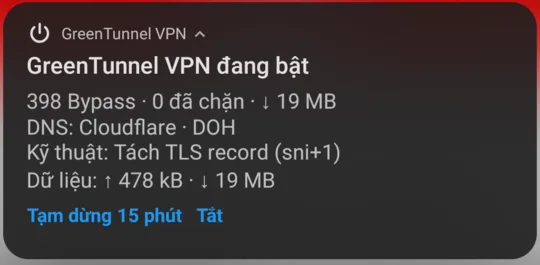
While GreenTunnel is on, Android shows its status notification. Expanded, it shows live counts measured by the engine: connections bypassed and blocked, the DNS in use, the technique, and data up and down. It also has two buttons, Pause 15 min and Turn off.
How Pause 15 min works
Pause turns protection off, and a new notification says what time it turns back on. That notification has Turn on now and Stay off buttons. The timer avoids the exact-alarm permission, so it may fire up to a minute late, and later still if the phone is in deep sleep. If Android won't let GreenTunnel start from the background at that moment, the notification asks you to tap it instead. Pause is handy when a single site or a Wi-Fi sign-in page misbehaves. For a site that always needs it, add it to Always direct in Settings instead, and see what to do when a site is still blocked.
Don't block the notification
On Android 13 and later, GreenTunnel asks for notification permission the first time you turn it on. If you'd rather not see it, don't block it. Long-press the notification and make the Protection status channel silent. That keeps the quick off switch and the scam-site alerts without the noise.
Check that it all works
- Restart the phone and unlock it.
- Within a few seconds, the key icon appears in the status bar and the GreenTunnel notification is back.
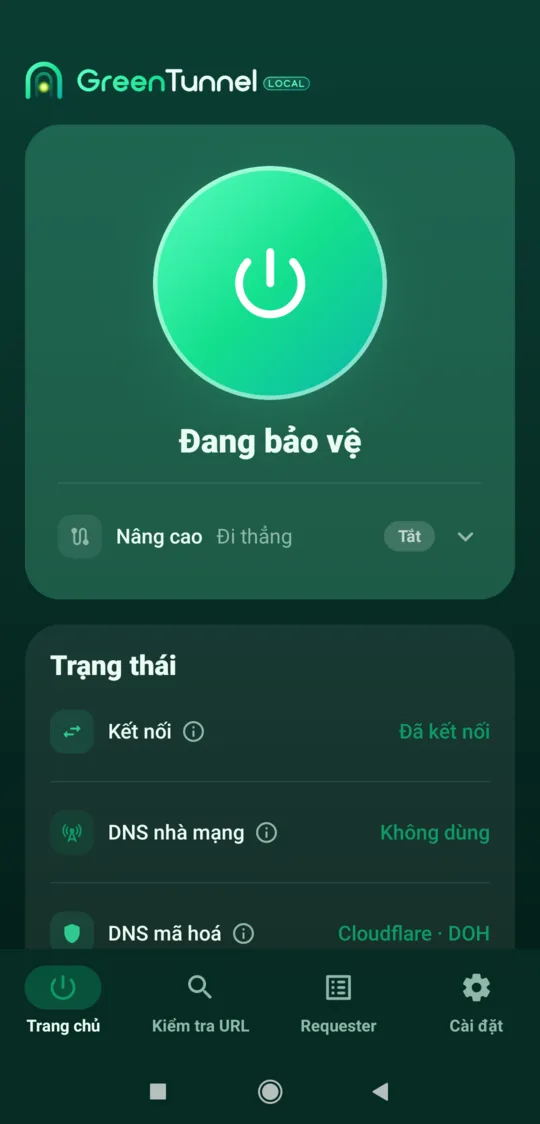
- Open the app. The power card says Protected, and the Status card shows values from the running engine.
- Leave the phone idle for a few hours, then check again. If the VPN is gone, recheck the battery steps for your brand.
Learn more about GreenTunnel on the home page.
FAQ
Does Always-on VPN drain the battery?
The switch itself only tells Android to keep GreenTunnel running. GreenTunnel processes your connections on the device, so it uses power while it works, as any VPN does. It doesn't use more just because it's always on.
Why does GreenTunnel turn off when I open another VPN app?
Android runs one VPN at a time, so starting another takes the slot. To reach your own WireGuard server together with GreenTunnel, import it into Tunnel Link instead. For Shadowsocks or other proxies, use Proxy Route.
With Block connections without VPN on, is my IP hidden?
No. That switch only forces traffic through GreenTunnel. GreenTunnel works on the device and sends connections directly, so websites see your IP. They only see another address when you route traffic through a proxy or tunnel you choose.
The VPN still disappears after all these steps. What now?
Some phones also have a separate “app freezing” or “smart power” feature, or a cleaner app that kills everything. Exclude GreenTunnel there too. If the phone shows a “Permission needed” state in the app, open it once and allow the VPN request again.