No leaks: why GreenTunnel won't go direct when a proxy fails
When your proxy or tunnel fails, connections stop instead of quietly going direct. Reading errors in Requester, testing profiles, why UDP is blocked.
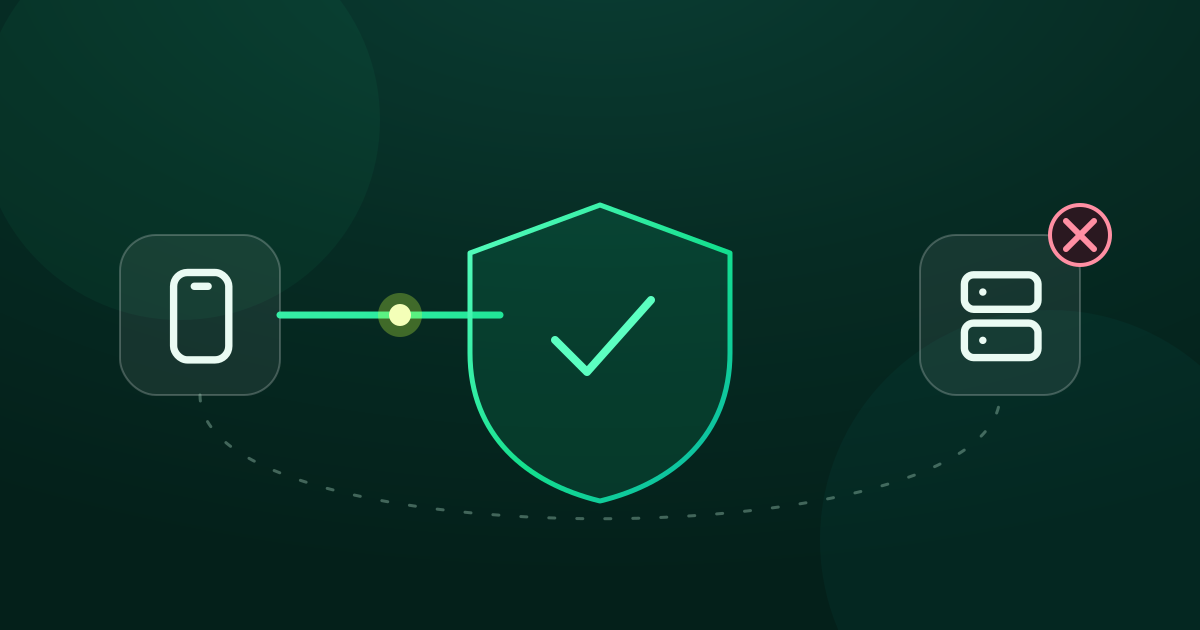
You route traffic through a proxy or tunnel for a reason: the office requires it, you don't want your ISP seeing where you go, or you need websites to see a server's IP in another country. If the proxy breaks and the app quietly sends connections direct, every one of those reasons is gone, and you may never notice. GreenTunnel does the opposite.
No silent fallback
Some apps have a “fallback”: if the proxy doesn't answer, they switch to a direct connection to “avoid errors”. It sounds convenient, but the result is:
- your ISP sees which sites you visit again,
- websites see your real IP, sometimes in the middle of a signed-in session,
- you still think you're behind the proxy, because nothing tells you otherwise.

In GreenTunnel, once a connection has been assigned to a proxy or tunnel (by the selected route or a rule), any of these makes that connection fail:
- the proxy can't be reached, or doesn't answer in time,
- a wrong username or password,
- an HTTP/HTTPS proxy answering with an error instead of opening the tunnel,
- a certificate problem when talking to an HTTPS proxy,
- a WireGuard server not answering the handshake for about 15 seconds.
The error is recorded, and the website shows that it couldn't load. Slightly annoying, but honest: you know right away that something is wrong, and you decide what to do.
With WireGuard, the tunnel keeps retrying the handshake by itself. Once the server answers again, new connections work without you lifting a finger.
Seeing what happens in Requester
Requester is the best place to see which way connections went:
- Connections that went through a proxy or tunnel carry a small Proxy tag.
- Failed connections carry an Error tag. Filter by Error to see just those.
- Tap a connection to open its details: What happened and Reason explain it in plain words, such as “The server did not answer in time” or “The server refused the connection”.
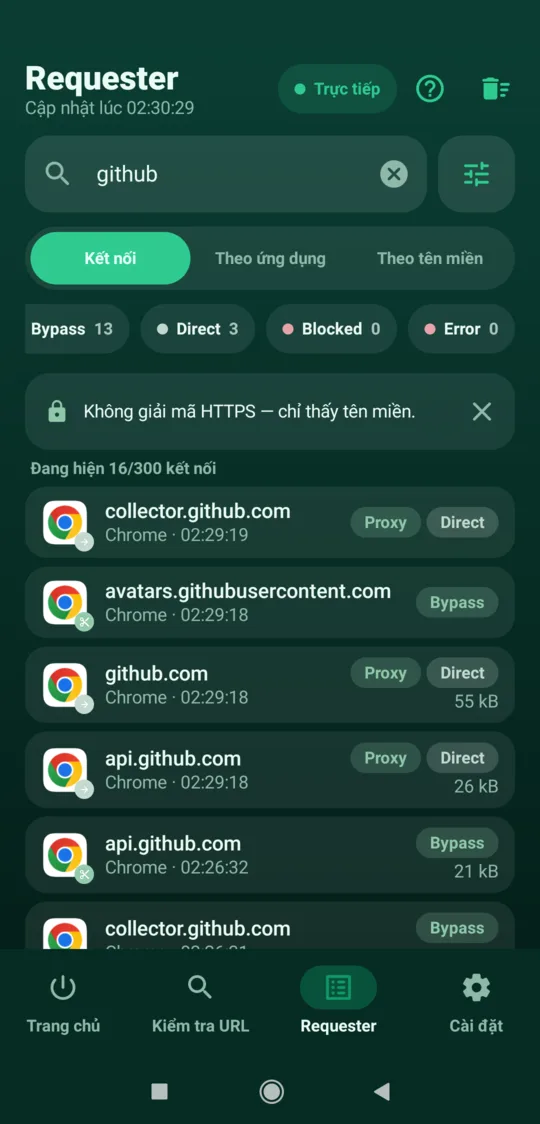
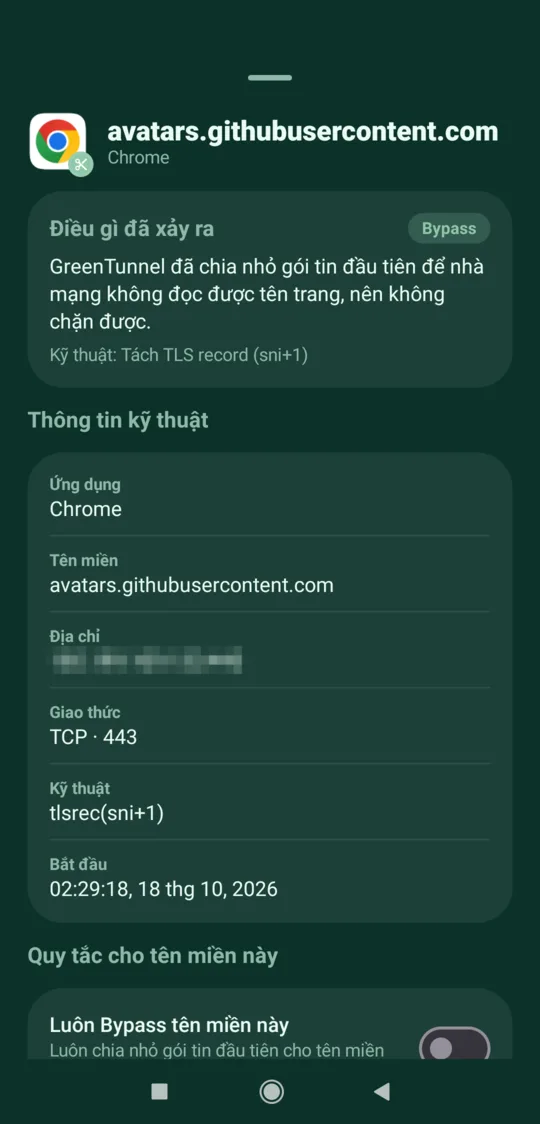
Error messages and logs never contain your proxy's address, passwords or keys. Requester only sees domain names and data sizes, never content, and it all stays on your device.
Test a profile before you rely on it
Don't wait for a page to fail to find out the proxy has a problem. Every profile has a Test button, in the editor and next to each profile on the Advanced screen:
- Proxies (SOCKS5, HTTP, HTTPS, Shadowsocks): GreenTunnel connects through the proxy to an HTTPS site and completes a TLS handshake. On success you see the time in milliseconds. On failure, you see “Can't reach the proxy”.
- WireGuard: GreenTunnel performs a handshake with the server and shows the round trip. No answer within 10 seconds means a timeout.
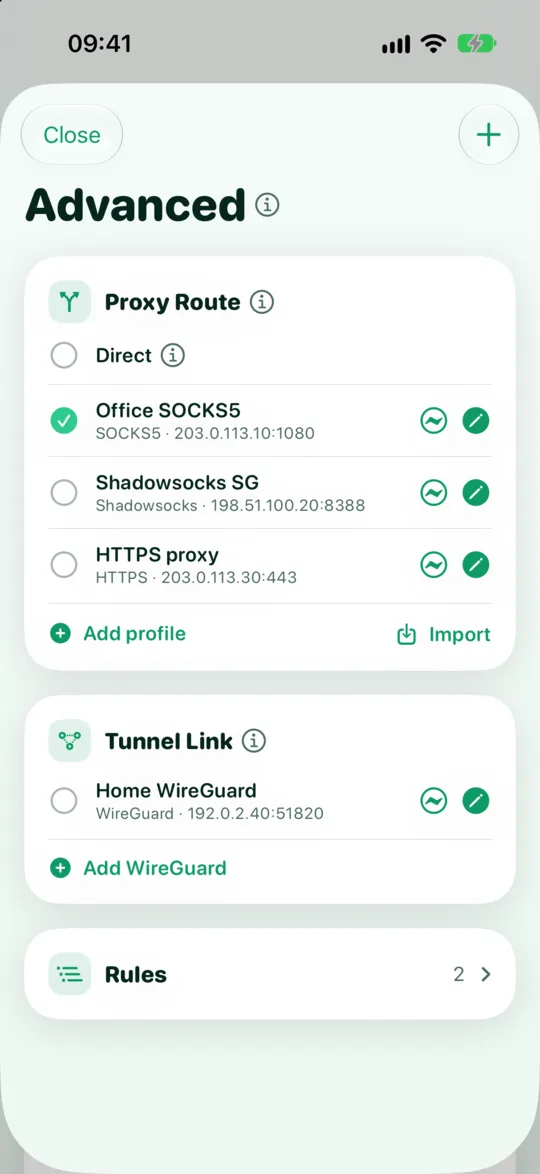
Two cases can be confusing: Shadowsocks and WireGuard servers never answer a wrong password or key. So a wrong Shadowsocks password looks like a stalled or cut connection, and a wrong WireGuard key looks like a timeout. If the server is up and the test still fails, double-check the password, cipher or keys.
QUIC is blocked when the route can't carry UDP
Modern browsers like QUIC (HTTP/3), which runs over UDP port 443. HTTP and HTTPS proxies, and SOCKS5 without UDP turned on, only carry TCP. Letting QUIC go direct would be a leak in itself. So when a connection's route can't carry UDP, GreenTunnel rejects QUIC, whatever the QUIC setting in Settings says.

There's nothing for you to fix: every major browser is built to fall back to HTTPS over TCP when QUIC can't get through, and that TCP connection goes through the proxy like any other. QUIC/HTTP3 blocking explains this in more depth.
What about other UDP traffic, such as some games and calls? If the route can't carry UDP, it is blocked too, just like QUIC. Apps then fall back to TCP through the proxy, and nothing leaks around it. The one exception is DNS, which GreenTunnel always answers itself over encrypted DNS. To send UDP through your own server too, use Shadowsocks (UDP on by default), SOCKS5 with Send UDP too, or Tunnel Link with WireGuard. On those routes, if the UDP channel can't be opened, the UDP connection fails too rather than going direct.
When the proxy is down and you need to get online
- Open the Advanced card under the power button and choose Direct. It takes effect at once, without turning the VPN off.
- Put sites that shouldn't depend on the proxy, like your bank, in Always direct.
- This protection only applies while GreenTunnel is running. If you turn GreenTunnel off, apps connect normally without it.
Proxy Route, Tunnel Link and Requester are part of the GreenTunnel VPN app. See how GreenTunnel protects your privacy on the home page.
FAQ
If my proxy dies, does GreenTunnel switch to another profile?
No. GreenTunnel only uses the route you chose. Switching to another profile or back to Direct is your call.
Why does a site load without a Proxy tag?
The domain may be in “Always direct”, match a rule whose target is Direct, or the selected route may be Direct. Open the connection's details in Requester to check.
What happens if I delete the profile in use?
The route falls back to Direct. Any rule still pointing to the deleted profile is treated as Direct too.
Does blocking QUIC slow websites down?
The browser spends one short attempt before switching to TCP, and usually remembers that choice for the site. In most cases you'll hardly notice.