Run your own Shadowsocks server with shadowsocks-rust
Run ssserver on a VPS: a 2022-blake3 config, a systemd service, TCP and UDP open, an ss:// link and QR code, then import it into GreenTunnel's Proxy Route.
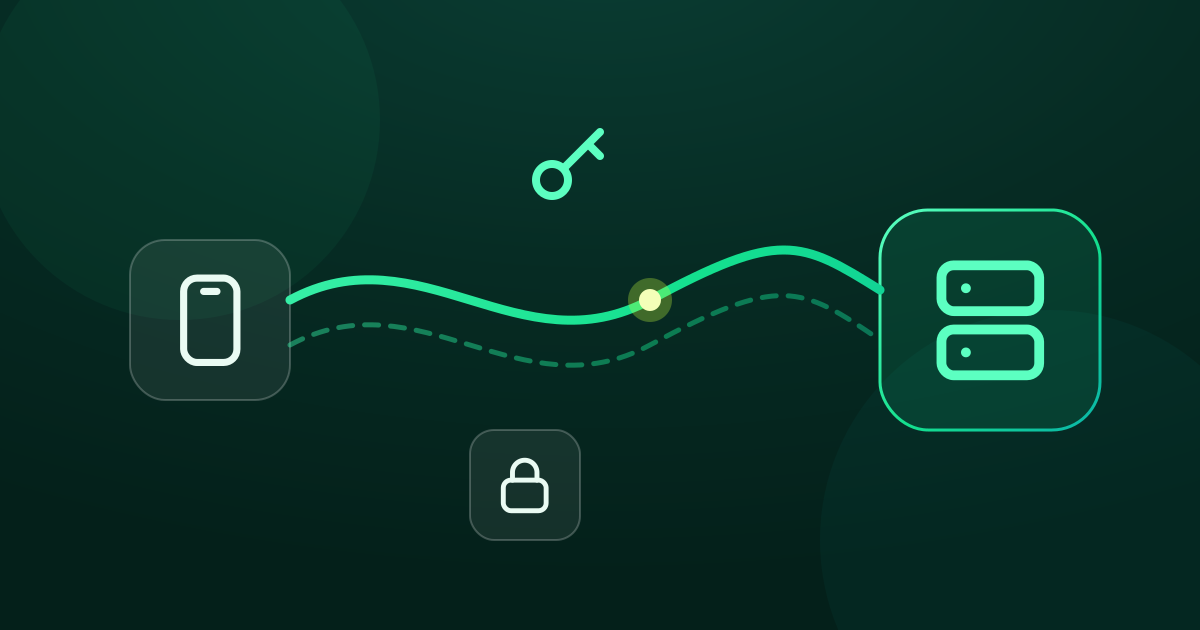
WireGuard is great when the network lets it through. Shadowsocks is a different tool. It is a proxy rather than a VPN, its traffic looks like random bytes, and it only needs one TCP and UDP port. Many people run both on the same VPS and pick whichever works best on the network they're on.
This guide uses shadowsocks-rust, the actively maintained Rust implementation. It supports the newer “2022” methods. The client side is Proxy Route in GreenTunnel, which speaks Shadowsocks over both TCP and UDP. Addresses are documentation examples. 203.0.113.20 stands for your VPS's public IP.

Before you start
- A VPS with Ubuntu or Debian, a public IP and SSH access with
sudo. - A provider and a country you've chosen lawfully, whose terms allow a personal proxy.
- A correct clock on the server. The 2022 methods reject messages whose timestamp is too far off, and Ubuntu keeps time in sync by default.
timedatectlshould say “System clock synchronized: yes”.
Step 1: install ssserver
shadowsocks-rust publishes ready-made Linux binaries on its GitHub releases page. Pick the latest version tag there, and the archive for your CPU: x86_64 for most VPS plans, aarch64 for ARM ones.
VER=v1.25.0          # replace with the latest tag from the releases page
ARCH=x86_64-unknown-linux-gnu
cd /tmp
curl -LO https://github.com/shadowsocks/shadowsocks-rust/releases/download/$VER/shadowsocks-$VER.$ARCH.tar.xz
curl -LO https://github.com/shadowsocks/shadowsocks-rust/releases/download/$VER/shadowsocks-$VER.$ARCH.tar.xz.sha256
sha256sum -c shadowsocks-$VER.$ARCH.tar.xz.sha256
sudo tar -xJf shadowsocks-$VER.$ARCH.tar.xz -C /usr/local/bin ssserver
ssserver --version
Only download from the project's own releases page, and only continue if the checksum line says OK. Some distributions also package shadowsocks-rust, or you can build it with cargo install shadowsocks-rust. Avoid the old shadowsocks-libev package, because it doesn't support the 2022 methods.
Step 2: make a key
The 2022 methods don't use a password you type. They use a random key of an exact length. For 2022-blake3-aes-256-gcm that is 32 bytes, written as Base64:
openssl rand -base64 32The output is a 44-character string ending in =. Keep it for the next step. Never reuse a key from a guide, a screenshot or another server.
Step 3: config.json and a systemd service
Create a dedicated system user, so the server doesn't run as root, and a config file only that user can read:
sudo useradd --system --no-create-home --shell /usr/sbin/nologin ssrust
sudo mkdir -p /etc/shadowsocks-rust
sudo nano /etc/shadowsocks-rust/config.json
{
"server": "0.0.0.0",
"server_port": 8388,
"method": "2022-blake3-aes-256-gcm",
"password": "PASTE_THE_BASE64_KEY_HERE",
"mode": "tcp_and_udp"
}sudo chown root:ssrust /etc/shadowsocks-rust/config.json
sudo chmod 640 /etc/shadowsocks-rust/config.json"mode": "tcp_and_udp" is what lets games, calls and QUIC go through the server too. Use "::" as the server address if you want it to listen on IPv6 as well.
The alternative: chacha20-ietf-poly1305
Some older clients don't know the 2022 methods yet. If you also need to serve one of those, use the widely supported AEAD method with a long random password:
"method": "chacha20-ietf-poly1305",
"password": "OUTPUT_OF_openssl_rand_-base64_24",
GreenTunnel supports both. Prefer the 2022 method when every client you use supports it, since it adds protection against replayed traffic.
The service
Create /etc/systemd/system/ssserver.service:
[Unit]
Description=Shadowsocks-rust server
After=network-online.target
Wants=network-online.target

[Service]
User=ssrust
Group=ssrust
ExecStart=/usr/local/bin/ssserver -c /etc/shadowsocks-rust/config.json
Restart=on-failure
NoNewPrivileges=true
ProtectSystem=strict
ProtectHome=true
PrivateTmp=true
LimitNOFILE=51200

[Install]
WantedBy=multi-user.target
sudo systemctl daemon-reload
sudo systemctl enable --now ssserver
sudo systemctl status ssserver
sudo ss -tulpn | grep 8388The last command should show ssserver listening on port 8388 twice, once for tcp and once for udp.
Step 4: open the firewall
Unlike WireGuard, a proxy needs no IP forwarding or NAT. The server makes the outgoing connections itself. You only open its port, for both protocols:
sudo ufw allow OpenSSH
sudo ufw allow 8388/tcp
sudo ufw allow 8388/udp
sudo ufw enable
If your provider has a firewall or security group in its web panel, allow TCP and UDP 8388 there too.
Step 5: build the ss:// link and QR code
An ss:// link in the SIP002 format carries the method, key, address and port in one line. For a 2022 method the key is written as is, with characters such as +, / and = percent-encoded. This small script reads your config and prints the link. Put your VPS IP or host name in host.
sudo python3 - <<'EOF'
import json, urllib.parse as u
c = json.load(open("/etc/shadowsocks-rust/config.json"))
host = "203.0.113.20"
print(f"ss://{c['method']}:{u.quote(c['password'], safe='')}@{host}:{c['server_port']}#My%20VPS")
EOF
The result looks like ss://2022-blake3-aes-256-gcm:KEY%3D@203.0.113.20:8388#My%20VPS, with your real key. For chacha20-ietf-poly1305 many clients expect the method:password part in Base64 instead. You can build that form like this:
printf '%s' 'chacha20-ietf-poly1305:YOUR_PASSWORD' | base64 -w0 | tr '+/' '-_' | tr -d '='GreenTunnel reads both forms. Now show the link as a QR code in the terminal:
qrencode -t ansiutf8 'ss://2022-blake3-aes-256-gcm:KEY%3D@203.0.113.20:8388#My%20VPS'GreenTunnel doesn't support Shadowsocks plugins such as obfs or v2ray-plugin, so the link must not contain ?plugin=.
Step 6: import into GreenTunnel
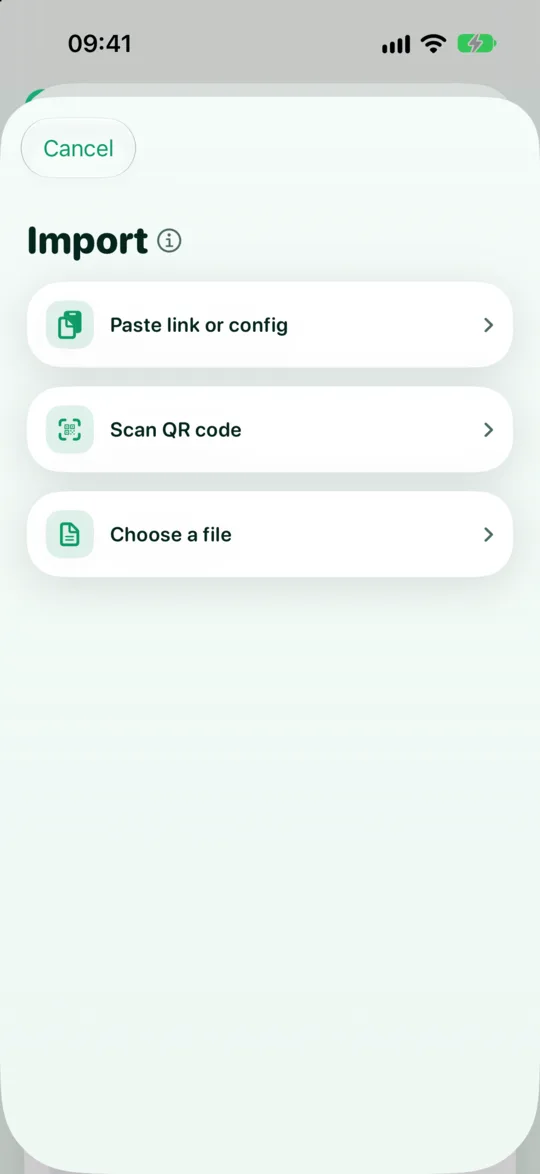
- Open the Advanced card under the power button and tap Configure, then Import.
- Choose Scan QR code, or copy the link and choose Paste link or config.
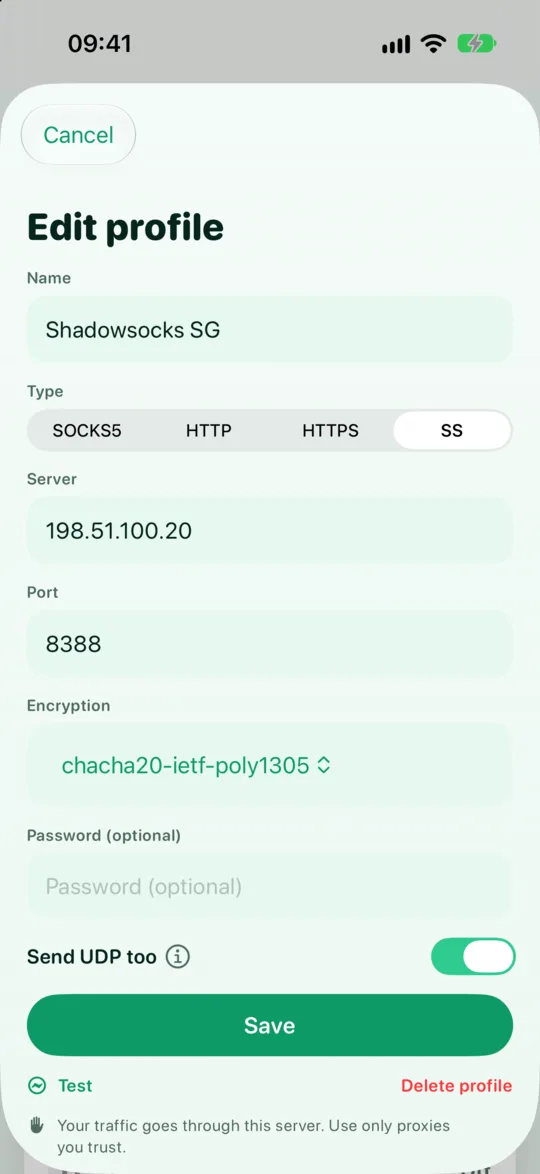
- The editor opens prefilled as a Shadowsocks profile with the method, the key and Send UDP too turned on. Review it and save.
- Tap Test. GreenTunnel makes a TLS handshake through your server and shows the time in milliseconds.
- Select the profile in the Advanced card, or keep Direct and send only some sites or apps through it with rules.
Then open any “what is my IP” page. It should show your VPS address.
UDP, QUIC and what happens on failure
With Send UDP too on, UDP traffic such as QUIC, games and calls goes through your server as well. If your server only runs TCP, turn the switch off. GreenTunnel then blocks all UDP except DNS while this profile is the active route. Apps fall back to TCP, which goes through the proxy, so nothing leaks around it. DNS lookups always use GreenTunnel's encrypted DNS. See why blocking QUIC helps.
A Shadowsocks server never answers a wrong key. A mistake in the method or key therefore shows up as a stalled test or a timeout, not as an error message. Compare the method and key with config.json first. If the server goes down, connections routed to it fail instead of going direct. See no leaks when your proxy fails.
Hardening tips
- Treat the link like a password. Anyone with your
ss://link can use your server and its bandwidth. Don't post it, and don't keep QR screenshots around. - Rotate the key when you suspect it leaked: generate a new one, update
config.json, runsudo systemctl restart ssserver, and import the new link. - Keep everything updated:
sudo apt install unattended-upgradesfor the system, and check the releases page now and then for a newerssserver. - Lock down SSH: key-only login with
PasswordAuthentication no, and only the ports you need in the firewall. - Keep the clock synced. If the 2022 method suddenly stops working everywhere, check
timedatectlon the server and the time on your phone. - Stick to AEAD methods. Old stream ciphers such as
rc4-md5are broken. GreenTunnel only offers the AEAD and 2022 methods.
For how Shadowsocks compares with SOCKS5 and HTTPS proxies, read SOCKS5, HTTP, HTTPS or Shadowsocks. If UDP works well on your networks, a WireGuard server on the same VPS is a good companion.
Learn more about GreenTunnel on the home page.
FAQ
2022-blake3-aes-256-gcm or chacha20-ietf-poly1305?
Use the 2022 method if all your clients support it. GreenTunnel does. It adds replay protection and needs a proper random key. chacha20-ietf-poly1305 is the safe choice for older clients, and it is quick on phones without AES hardware.
Can several people share one server?
They can, but everyone with the link has full use of it, and you can't revoke one person alone. Running a second ssserver instance on another port with its own key keeps things separate.
Does GreenTunnel see my server address or key?
No. The link is parsed on the device, and the key is kept in the system's secure store. GreenTunnel runs no servers and never collects your traffic, domains or browsing content.
Why does the test pass but some apps don't work?
Check that the server really listens on UDP and that UDP 8388 is open in every firewall. If you can't get UDP working, turn Send UDP too off, so apps use TCP through the proxy instead.