Import proxy and WireGuard profiles from links, QR, .conf files
GreenTunnel reads ss://, socks5://, http(s):// links, WireGuard .conf files and QR codes. What gets checked, and how to keep password-bearing links safe.
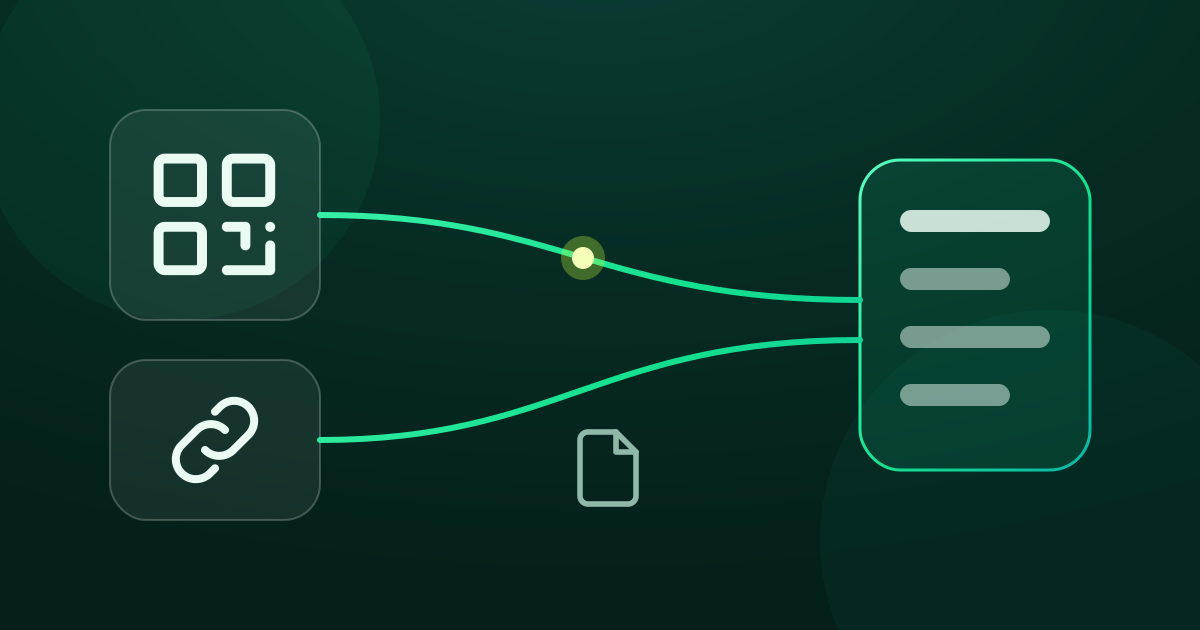
Server providers, company admins and your own VPS dashboard tend to hand out configs as a long link, a QR code or a .conf file. GreenTunnel has one entry point for all three, and it works out by itself whether the config belongs in Proxy Route or Tunnel Link.
Opening the Import sheet
You'll find Import in two places:
- On the Advanced screen (the Advanced card under the power button → Configure), including the Add WireGuard button in the Tunnel Link section.
- In the Add profile sheet opened from the Advanced card on Home.
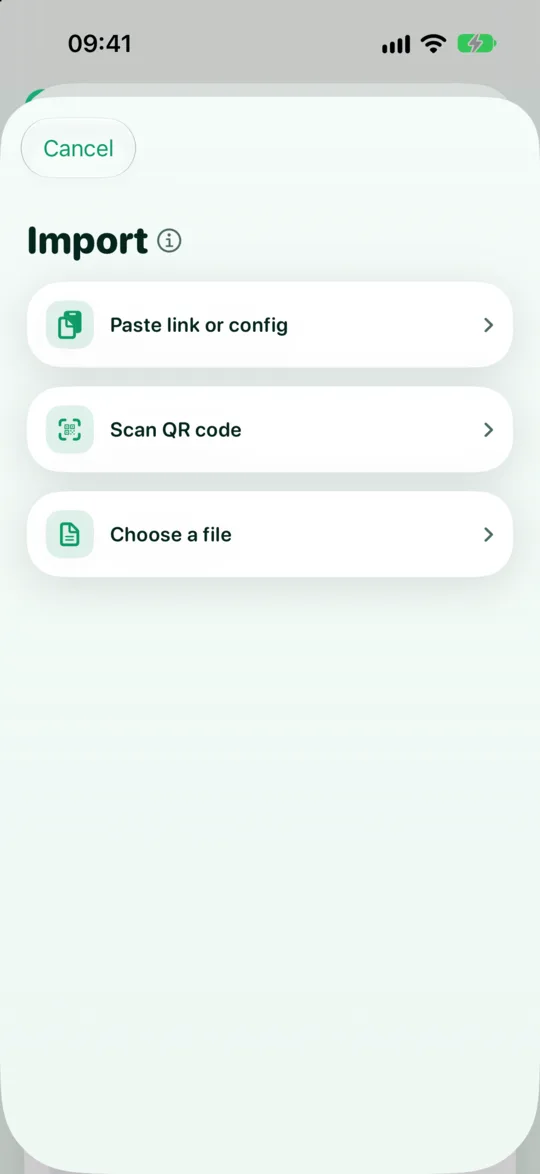
The sheet offers three options:
- Paste link or config: reads whatever is on the clipboard. If the clipboard is empty, the app tells you right away.
- Scan QR code: opens the camera to read the code. Camera permission is only requested when you pick this, and GreenTunnel uses the camera only to read the code and records nothing.
- Choose a file: opens a
.confor.txtfile from your device storage or a file manager.
Supported formats
Proxy links: socks5://, http://, https://
Standard proxy URLs, optionally with a username and password. The part after # becomes the profile name. Without it, GreenTunnel uses server:port. A missing port falls back to the defaults: 1080, 8080 and 443. socks5h:// and socks:// are accepted too.
socks5://alice:secret@203.0.113.10:1080#Office%20proxy
https://proxy.example.net:443#HTTPS%20proxy
Shadowsocks links: ss://
SIP002 links (the cipher:password part base64- or percent-encoded), plus the older all-base64 form. Plugins such as obfs or v2ray-plugin are not supported yet, so links with a plugin are rejected.
ss://Y2hhY2hhMjAtaWV0Zi1wb2x5MTMwNTpleGFtcGxlLXBhc3M@198.51.100.7:8388#My%20serverWireGuard configs (.conf)
The wg-quick format that most WireGuard servers export. Choose the file, paste its text, or scan a QR code that contains it. A config may have only one [Peer] section.
[Interface]
PrivateKey = (your private key)
Address = 10.8.0.2/32

[Peer]
PublicKey = (the server's public key)
Endpoint = 203.0.113.5:51820
The addresses in these examples are documentation addresses and don't point to real servers.
What GreenTunnel checks

The text is parsed on the device. If something is off, you get a specific error and nothing is saved. Common ones:
- Not a supported link or config (a
vmess://link, say, or random text). - No server, a port of 0 or above 65535, or an IPv6 address without square brackets.
- A proxy link with an extra path or query after it.
- Shadowsocks with an outdated cipher such as
rc4-md5, no password, or a2022-blake3key of the wrong length. - WireGuard without a
PrivateKey, a[Peer]or anEndpoint, keys that aren't 32-byte base64, an invalid MTU, or AmneziaWG parameters (not supported yet).
A valid config lands in the right place: SOCKS5, HTTP, HTTPS and Shadowsocks in Proxy Route, WireGuard in Tunnel Link. The editor opens with every field filled in, so you can rename it, double-check the server and tap Test before saving.
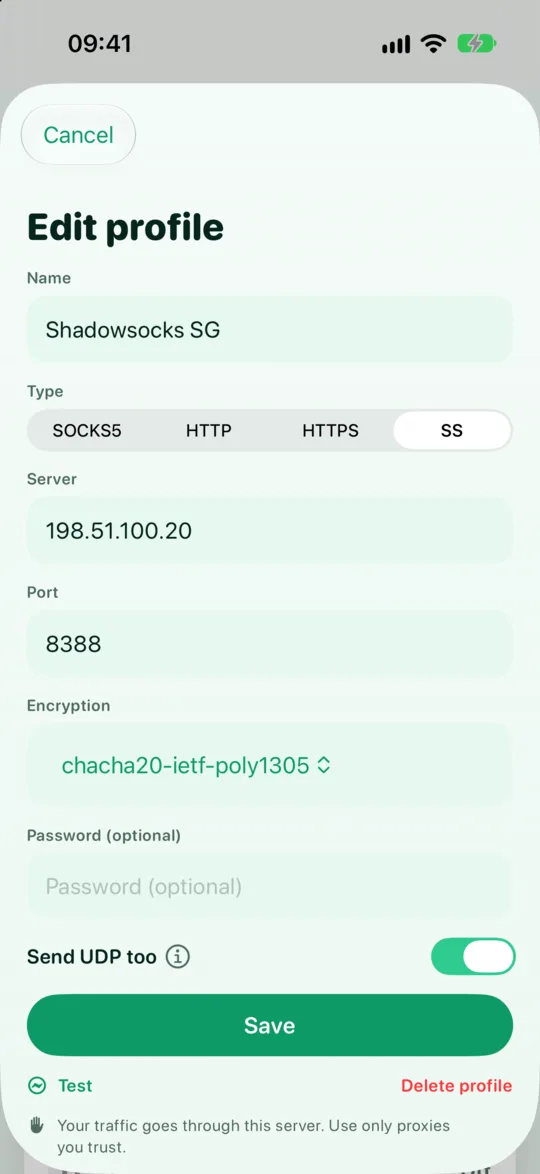
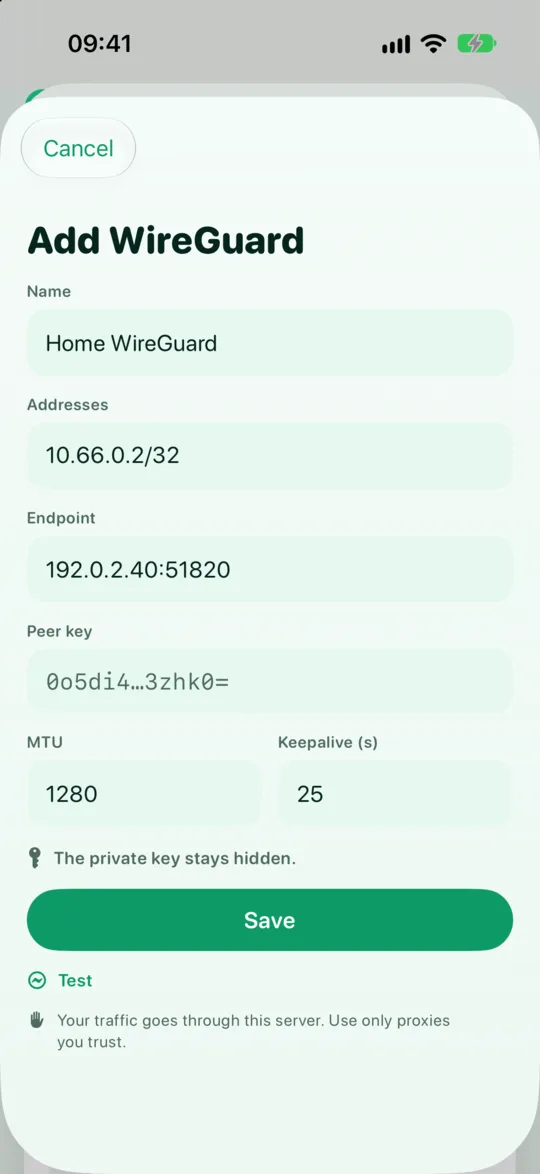
When you save, proxy passwords, Shadowsocks passwords and WireGuard keys go into the system's secure store (Android Keystore, iOS Keychain). A WireGuard private key is never shown on screen again.
Staying safe when importing
- Only import from sources you trust. A config tells GreenTunnel where to send your traffic. Whoever gave you a proxy link can see which sites you visit through that proxy. Be careful with “free proxy” links passed around on social media.
- Links contain passwords. The base64 part of an
ss://link is not encryption: anyone holding the link can decode the cipher and password. Treat links like passwords. - Don't share screenshots of QR codes. A QR code is just a link or config file as a picture. Posting one in a group chat posts the password or private key along with it.
- Clean up the clipboard. After pasting, copy something else so the link doesn't linger on the clipboard.
- Test before you rely on it. The Test button tells you whether the proxy or tunnel answers before you move traffic onto it.
GreenTunnel doesn't send the configs you import anywhere, and never collects your browsing content, the domains you visit or your traffic.
Importing is part of the GreenTunnel VPN app. More on the home page.
FAQ
Can I import vmess://, trojan:// or vless:// links?
Not yet. GreenTunnel currently reads ss://, socks5://, http(s):// and WireGuard configs.
Is the profile used right after importing?
No. Save it in the editor first, then select it in the Advanced card or use it in a rule.
Why are Shadowsocks links with a plugin rejected?
Plugins such as obfs or v2ray-plugin change how the traffic looks on the wire and need extra software. GreenTunnel doesn't support them yet, so it shows an error instead of saving a profile that wouldn't work.
Do I need to grant camera access?
Only if you choose Scan QR code. Pasting a link or choosing a file needs no camera permission.