Set up your own WireGuard server on an Ubuntu VPS
Install WireGuard on an Ubuntu VPS: keys, wg0.conf, NAT, firewall, a phone config and QR code, then import it into GreenTunnel's Tunnel Link.
Renting a VPS and running WireGuard on it is the most direct way to get a tunnel you control. You choose the country, you hold the keys, and the only logs are the ones you keep. This guide walks through a clean setup on Ubuntu 22.04 or 24.04, then connects a phone through Tunnel Link, the WireGuard client built into GreenTunnel.
All addresses here are documentation examples. 203.0.113.10 stands for your VPS's public IP, and 10.8.0.0/24 is the private network inside the tunnel. Replace them with your own values.
What you're building

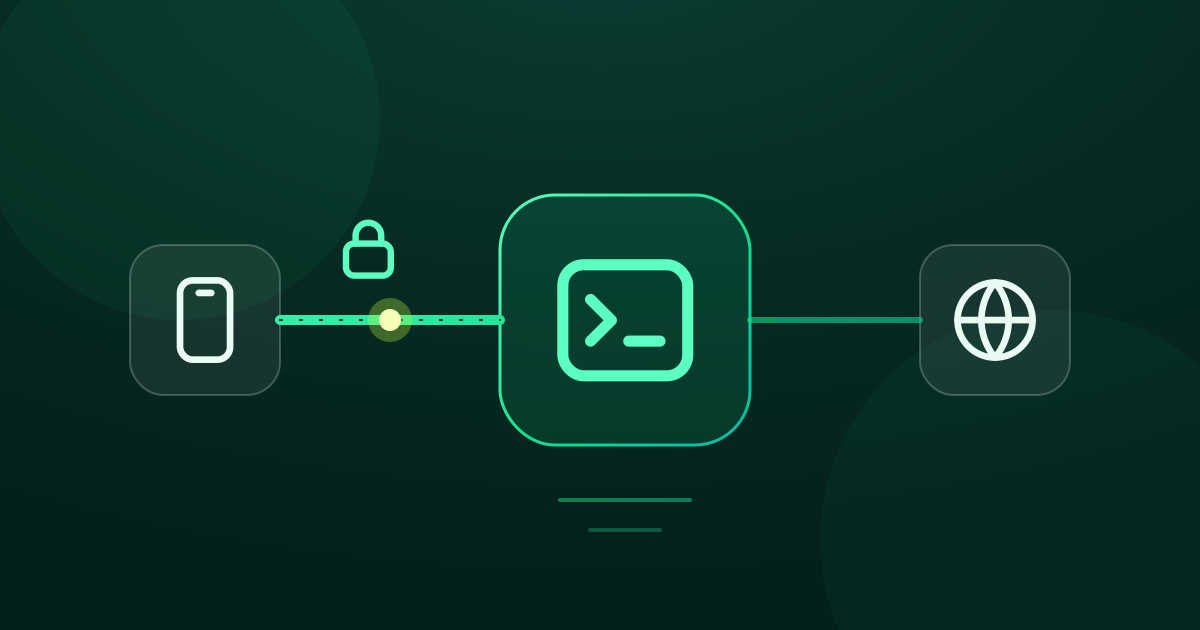
The phone gets the tunnel address 10.8.0.2. The server is 10.8.0.1 on an interface called wg0. Traffic that GreenTunnel routes into the tunnel arrives at the server, which forwards it to the internet under its own public address. Websites then see 203.0.113.10 instead of your ISP's address.
Before you start
- A VPS with Ubuntu and a public IPv4 address. The smallest plan of most providers is enough for one person.
- SSH access as a user with
sudo. - A lawful choice of provider and country. Read the provider's terms, and check that running a personal VPN is allowed both where the server sits and where you live.
Step 1: install WireGuard
WireGuard has been part of the Linux kernel for years, so you only need the userspace tools. qrencode is for the QR code at the end.
sudo apt update
sudo apt install wireguard-tools qrencode
Step 2: generate keys
Every device gets its own key pair. Create one for the server and one for the phone, plus an optional preshared key that adds a second, symmetric layer of encryption for this phone.
sudo -i
cd /etc/wireguard
umask 077
wg genkey | tee server.key | wg pubkey > server.pub
wg genkey | tee phone.key | wg pubkey > phone.pub
wg genpsk > phone.psk
umask 077 makes the new files readable by root only. The .key files are private keys. Never copy them anywhere they don't need to be.
Step 3: write wg0.conf
First find the name of the server's public network interface. It's often eth0 or ens3.
ip route show default
# default via 203.0.113.1 dev eth0 ...
Now write the server config. The heredoc fills in the keys from the files you just made. If your interface isn't eth0, change it in both NAT lines.
cat > /etc/wireguard/wg0.conf <<EOF
[Interface]
Address = 10.8.0.1/24
ListenPort = 51820
PrivateKey = $(cat server.key)
PostUp = iptables -t nat -A POSTROUTING -s 10.8.0.0/24 -o eth0 -j MASQUERADE
PostDown = iptables -t nat -D POSTROUTING -s 10.8.0.0/24 -o eth0 -j MASQUERADE

[Peer]
# phone
PublicKey = $(cat phone.pub)
PresharedKey = $(cat phone.psk)
AllowedIPs = 10.8.0.2/32
EOF
AllowedIPs = 10.8.0.2/32 on the server means “this peer may only use the address 10.8.0.2”. Every new device gets the next address, such as 10.8.0.3.
Prefer nftables?
On current Ubuntu the iptables command already talks to nftables underneath. If you'd rather write native nftables rules, replace the two NAT lines with these:
PostUp = nft add table ip wgnat
PostUp = nft 'add chain ip wgnat post { type nat hook postrouting priority srcnat ; }'
PostUp = nft add rule ip wgnat post ip saddr 10.8.0.0/24 oifname "eth0" masquerade
PostDown = nft delete table ip wgnat
Step 4: IP forwarding and the firewall
Linux doesn't forward packets between interfaces by default. Turn it on permanently:
echo 'net.ipv4.ip_forward = 1' > /etc/sysctl.d/99-wireguard.conf
sysctl --system
Then open only what you need. With ufw, allow SSH first so you don't lock yourself out, then the WireGuard port, then forwarding from the tunnel to the internet:
ufw allow OpenSSH
ufw allow 51820/udp
ufw route allow in on wg0 out on eth0
ufw enable
Many providers also have a firewall in their web panel, often called a security group. Allow UDP 51820 there too, or the handshake will never arrive.
Step 5: start the server
systemctl enable --now wg-quick@wg0
wg show
wg show lists the wg0 interface and the phone as a peer. There is no “latest handshake” line yet, because the phone hasn't connected.
Step 6: create the phone's config
cat > /etc/wireguard/phone.conf <<EOF
[Interface]
PrivateKey = $(cat phone.key)
Address = 10.8.0.2/32
MTU = 1280

[Peer]
PublicKey = $(cat server.pub)
PresharedKey = $(cat phone.psk)
Endpoint = 203.0.113.10:51820
AllowedIPs = 0.0.0.0/0
PersistentKeepalive = 25
EOF
Put your VPS's real IP or host name in Endpoint. The finished file looks like this, with real keys in place of the capitals:
[Interface]
PrivateKey = PHONE_PRIVATE_KEY
Address = 10.8.0.2/32
MTU = 1280

[Peer]
PublicKey = SERVER_PUBLIC_KEY
PresharedKey = PHONE_PRESHARED_KEY
Endpoint = 203.0.113.10:51820
AllowedIPs = 0.0.0.0/0
PersistentKeepalive = 25
A few notes for GreenTunnel. MTU = 1280 matches its default and works on almost every network. PersistentKeepalive keeps mobile NATs from dropping an idle tunnel. GreenTunnel decides what goes into the tunnel with its own route and rules, so AllowedIPs and any DNS = line are not used. Keep them anyway if you also use the file in other WireGuard apps.
Step 7: get the config onto your phone
The quickest way is a QR code printed right in the terminal. Make the terminal window large enough for the code to fit.
qrencode -t ansiutf8 -r /etc/wireguard/phone.confOr save a PNG and copy it, or the .conf file itself, to your computer over SSH:
qrencode -o /root/phone.png -r /etc/wireguard/phone.conf
# on your computer:
scp root@203.0.113.10:/etc/wireguard/phone.conf .
Then in GreenTunnel:
- Open the Advanced card under the power button and tap Configure.
- In Tunnel Link, tap Add WireGuard.
- Choose Scan QR code, Choose a file or Paste link or config.
- Check the prefilled editor, give the profile a name such as “My VPS”, and save.
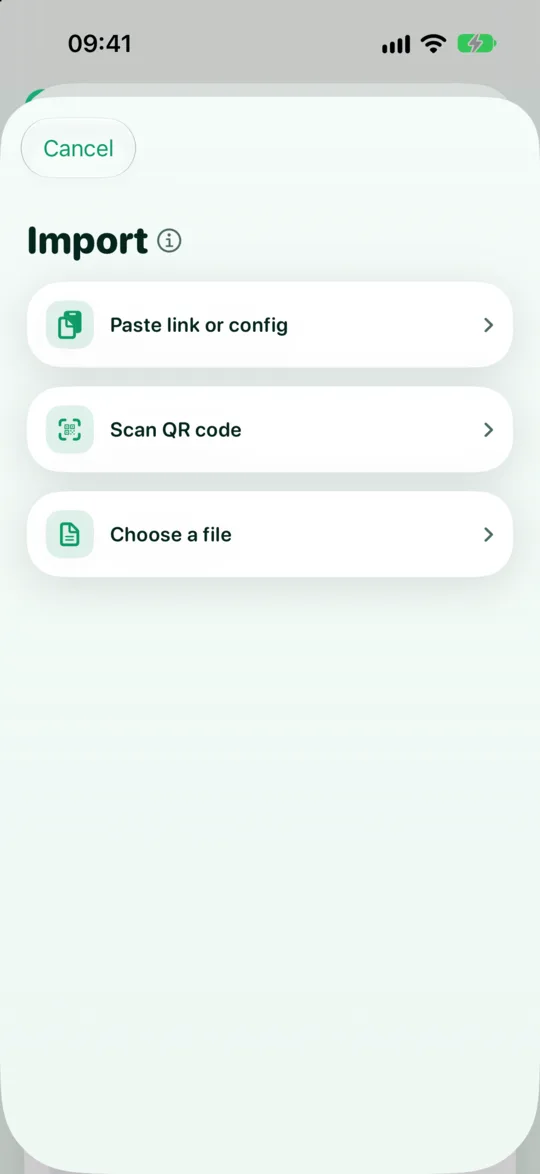
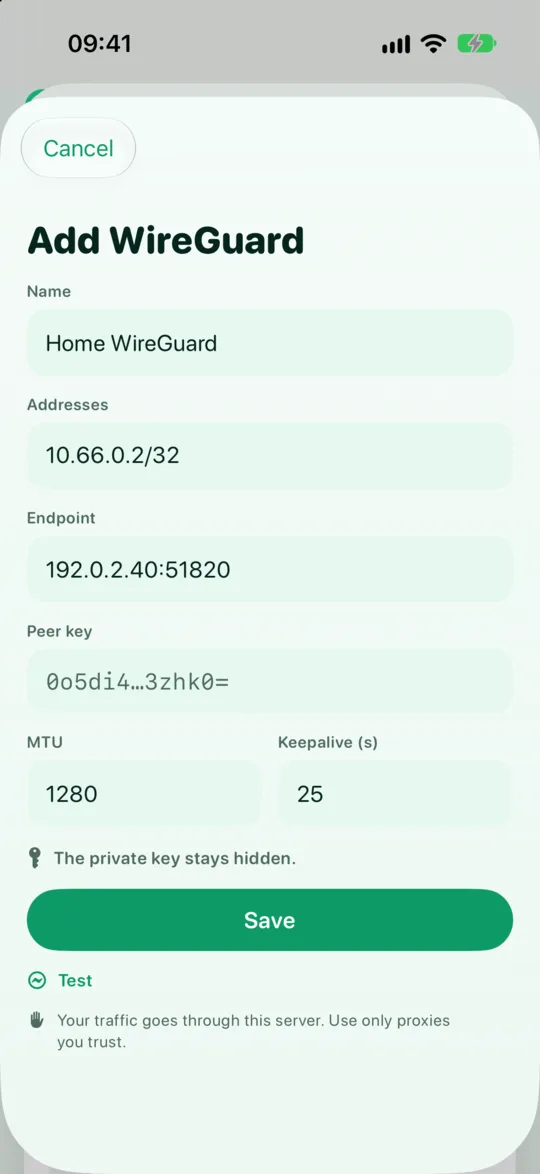
Once the phone has the config, delete the copies of its private key from the server. The server only needs the phone's public key, which is already in wg0.conf.
rm -f /etc/wireguard/phone.key /etc/wireguard/phone.conf /root/phone.pngMore on the supported formats in importing profiles from links, QR codes and files.
Step 8: test it
- Tap Test next to the new profile. GreenTunnel performs a WireGuard handshake and shows the round trip in milliseconds.
- Select the profile in the Advanced card to send all traffic through it. Or keep Direct and add a rule for just the sites or apps that need it.
- On the server, run
wg showagain. You should now see a recent “latest handshake” and growing transfer counters. - Open any “what is my IP” page on the phone. It should show your VPS address.
If the test times out
- Port closed: check both
ufw statusand the provider's own firewall for UDP 51820. - Key mismatch: WireGuard never answers a handshake made with the wrong key, so a wrong key looks exactly like a timeout. Compare the server's
PublicKeyin the phone's config withserver.pub. - Service not running:
systemctl status wg-quick@wg0shows why. - The handshake works but pages don't load: usually forwarding or NAT. Check
sysctl net.ipv4.ip_forwardand the interface name in the NAT lines. - Some networks block UDP or WireGuard itself. Then a Shadowsocks server on the same VPS is worth trying.
If the server goes down while you use it, connections routed to the tunnel fail instead of leaking out directly. See no leaks when your proxy or tunnel fails.
This guide sets up IPv4 only. IPv6 connections that GreenTunnel would send into this tunnel are refused, and apps fall back to IPv4. To carry IPv6 as well, add a private IPv6 range to both Address lines. See IPv6 and VPNs.
Keep the server safe
- Automatic security updates:
apt install unattended-upgrades, thendpkg-reconfigure -plow unattended-upgrades. - SSH with keys only: once your SSH key works, set
PasswordAuthentication noin the SSH config and restart SSH. - A minimal firewall: only SSH and UDP 51820 are open. Don't run other services on the same box unless you need them.
- One key pair per device: phone, laptop and tablet each get their own keys and address. When a device is lost, delete its
[Peer]block and restartwg-quick@wg0. Nothing else needs to change. - Rotate keys now and then: generate a new pair for a device, swap its
[Peer]block, and import the new config. In GreenTunnel, importing a new config is also how you change keys. - Treat configs like passwords: a
.conffile or its QR code is a full key to your server. Don't send it through chat apps, and don't leave screenshots of the QR code in your gallery.
Want to understand how this differs from a commercial VPN? Read local VPN vs remote VPN, or visit the home page.
FAQ
Can I use the same config on my laptop too?
Technically yes, but don't. Two devices with the same key keep pushing each other off the server. Give each device its own key pair and its own address, which also lets you revoke one without touching the others.
Does GreenTunnel see my server or my keys?
No. The config is parsed on the device, and the private key goes into the system's secure store. GreenTunnel runs no servers and never collects your traffic, domains or browsing content.
Which port should I use?
51820 is WireGuard's usual port and works fine. You can pick another UDP port. Just change it in ListenPort, the firewall rules and the phone's Endpoint.
Does the tunnel carry games and calls?
Yes. WireGuard works at the IP-packet level, so both TCP and UDP go through, QUIC included. DNS lookups keep using GreenTunnel's encrypted DNS.